Reports
Let readers report a VitNode Content Engine record to moderators with the reports option, useContentPermissions and ReportButton, then find the report in the ModCP and open the reported content.
reports adds a Report button to your content. A reader picks a reason, and the report lands in the moderators' queue with a copy of what they saw. This page adds it to the newsroom's articles and follows one report to the ModCP.
Before you begin
You need a content type with a public API and a public record page, such as the article page from Content page. Members do not have to write articles, because readers can report staff-written articles too. Sign in with a member account to report, and use an account with moderator permissions, such as a root administrator, to read the report.
Turn on reports
Edit src/content/article.ts and add reports after publicApi. This is an excerpt:
  publicApi: {
    path: "news",
    fields: ["id", "title", "slug", "body", "publishedAt"],
  },

  reports: true,
Reports live in core tables, so there is nothing to migrate. The article type gets the moderator permissions can_view_reports and can_manage_reports, and a new public route, GET /api/newsroom/content/news/permissions, starts answering canReport.
Ask whether the visitor may report
The button should only show where a report would be accepted, and that depends on who is looking. Create src/pages/article-permissions.ts. This is the complete file:
import { useContentPermissions } from "@vitnode/core/tanstack/content";
import { fetcher } from "@vitnode/core/tanstack/fetcher";

import { manifest } from "@/manifest.gen";

/** What the visitor may do with each article on screen: `canEdit`, `canReport`. */
export const useArticlePermissions = (ids: readonly number[]) =>
  useContentPermissions({
    ids,
    queryKey: [manifest.id, "articles"],
    fetch: async request => {
      const res = await fetcher({
        plugin: manifest.id,
        method: "get",
        module: "content/news",
        path: "/permissions",
        args: { query: { ids: request.join(",") } },
      });
      if (res.status !== 200) throw new Error("Loading permissions failed.");

      return await res.json();
    },
  });
If you followed Permissions, this file already exists, so reuse it. The same route answers both canEdit and canReport.
canReport is true for a public article the visitor did not write, guests included. The dialog asks a guest to sign in. An article staff wrote in the AdminCP has no author, so every reader may report it.
Add the Report button
Edit src/pages/article-page.tsx. Add contentTarget to the existing @vitnode/core/content import, the other imports, and an ArticleActions component above ArticlePage. These are excerpts:
import { contentTarget, zodRichTextDocument } from "@vitnode/core/content";
import { ReportButton } from "@vitnode/core/tanstack/moderation";
import { useTranslations } from "use-intl";

import { articleContentType } from "@/content/article";

import { useArticlePermissions } from "./article-permissions";

/** Asked in the browser, so the cached page stays the same for everyone. */
const ArticleActions = ({ id, title }: { id: number; title: string }) => {
  const t = useTranslations("newsroom.articles");
  const { canReport } = useArticlePermissions([id]).of(id);

  return (
    <div className="flex flex-wrap gap-2">
      {canReport ? (
        <ReportButton
          preview={{ title }}
          target={contentTarget(manifest.id, articleContentType, id)}
          typeLabel={t("report_type")}
        />
      ) : null}
    </div>
  );
};
Then render it at the end of the article's <header>, below the date:
      <header className="flex flex-col gap-2">
        {/* title and date as before */}
        <ArticleActions id={item.id} title={item.title} /> {}
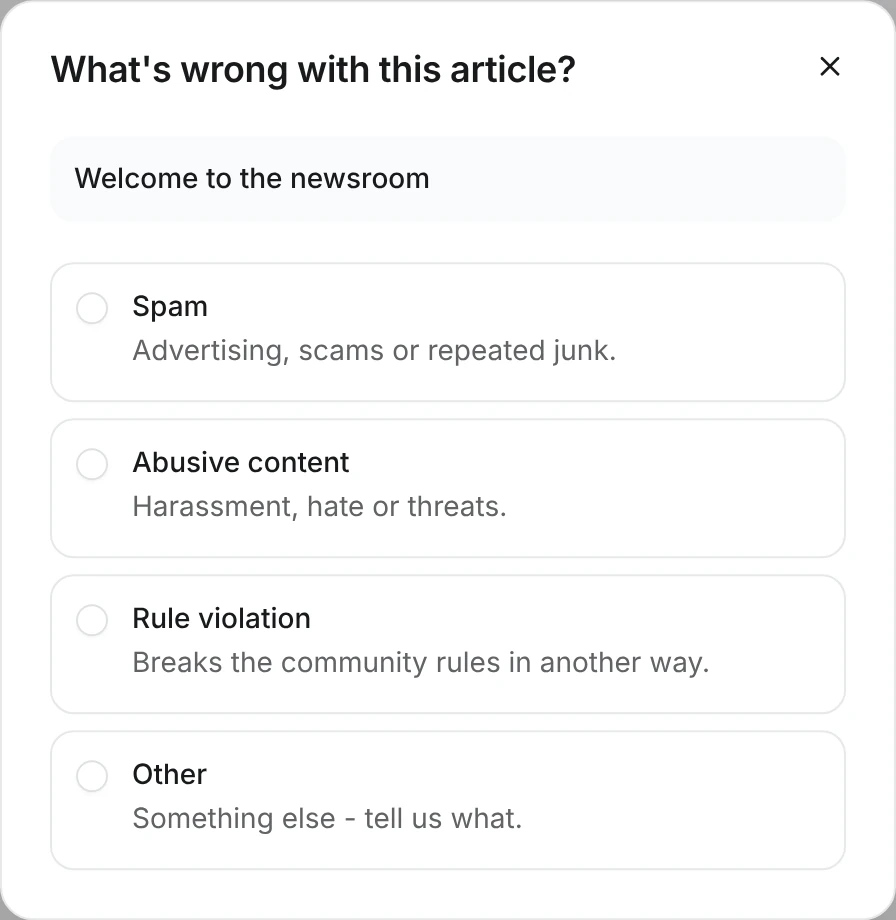
</header>contentTargetnames the record from the content type, so the type id always matches what the API registered.previewshows the article's title in the dialog, andtypeLabelfinishes its title, "What's wrong with this article?".- The button loads its own messages, and its form only when the dialog opens.
If ArticleActions already exists from Permissions, add the canReport branch next to its Edit link, read both flags with const { canEdit, canReport } = useArticlePermissions([id]).of(id), and pass title={item.title} where the header renders it.
Add the label
Add report_type under newsroom.articles in src/locales/en.json:
{
  "newsroom": {
    "articles": {
      "report_type": "article"
    }
  }
}
The dialog's own labels, such as the reasons, come from core.
Grant the moderator permissions
Moderators need can_view_reports on articles to see a report, and can_manage_reports to handle it. A root administrator holds every moderator permission. For anyone else, open AdminCP → Staff → Moderators, add the user or role, and turn on the Newsroom report permissions, as Configure moderators shows.
Check the result
Sign in as a member and open /news/welcome-to-the-newsroom, which staff wrote. Report shows below the date:

Click Report, pick Spam, add details and click Send report:
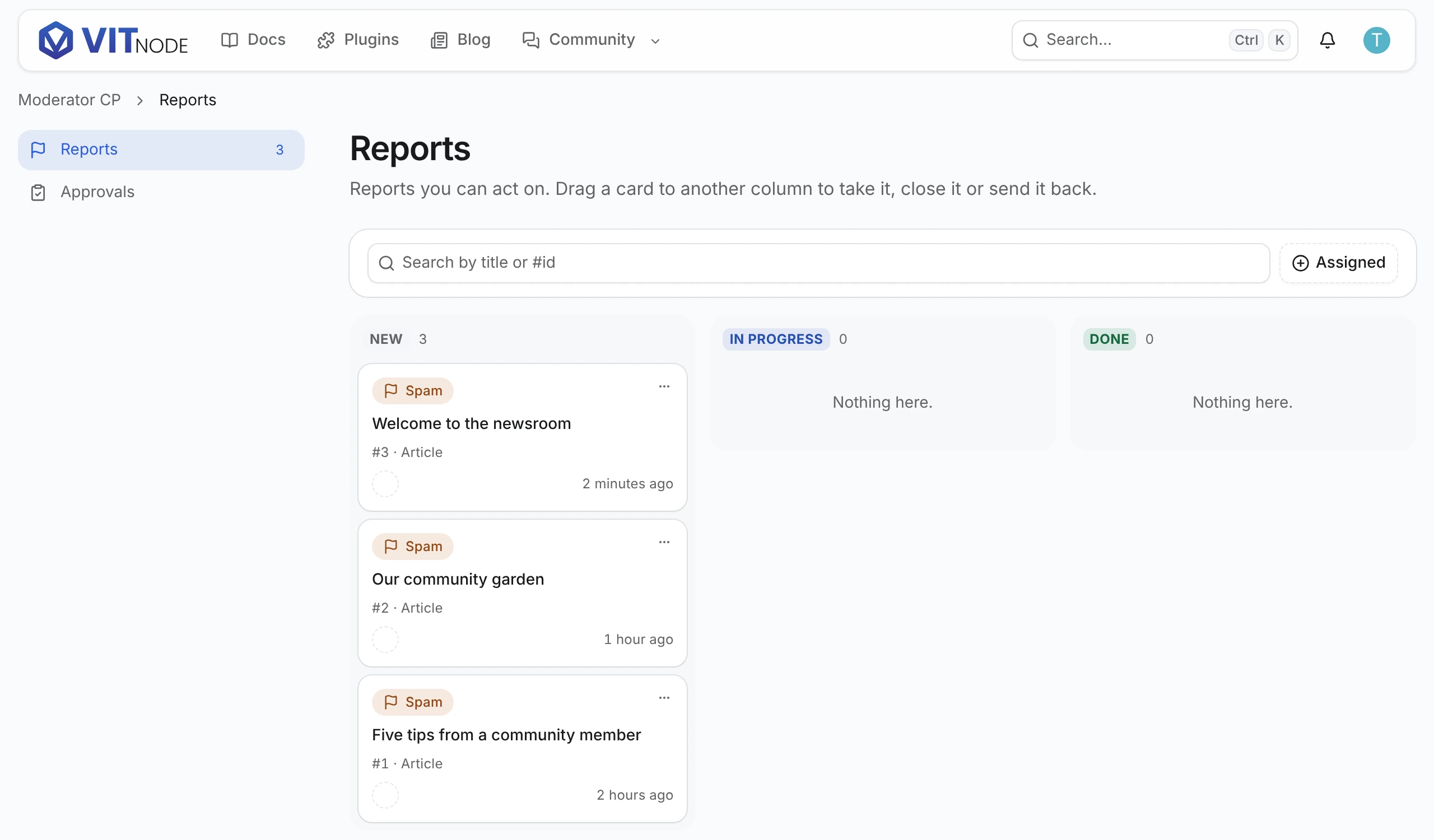
Now sign in as the moderator and open /modcp/reports. The report is in the queue with its reason and the article:
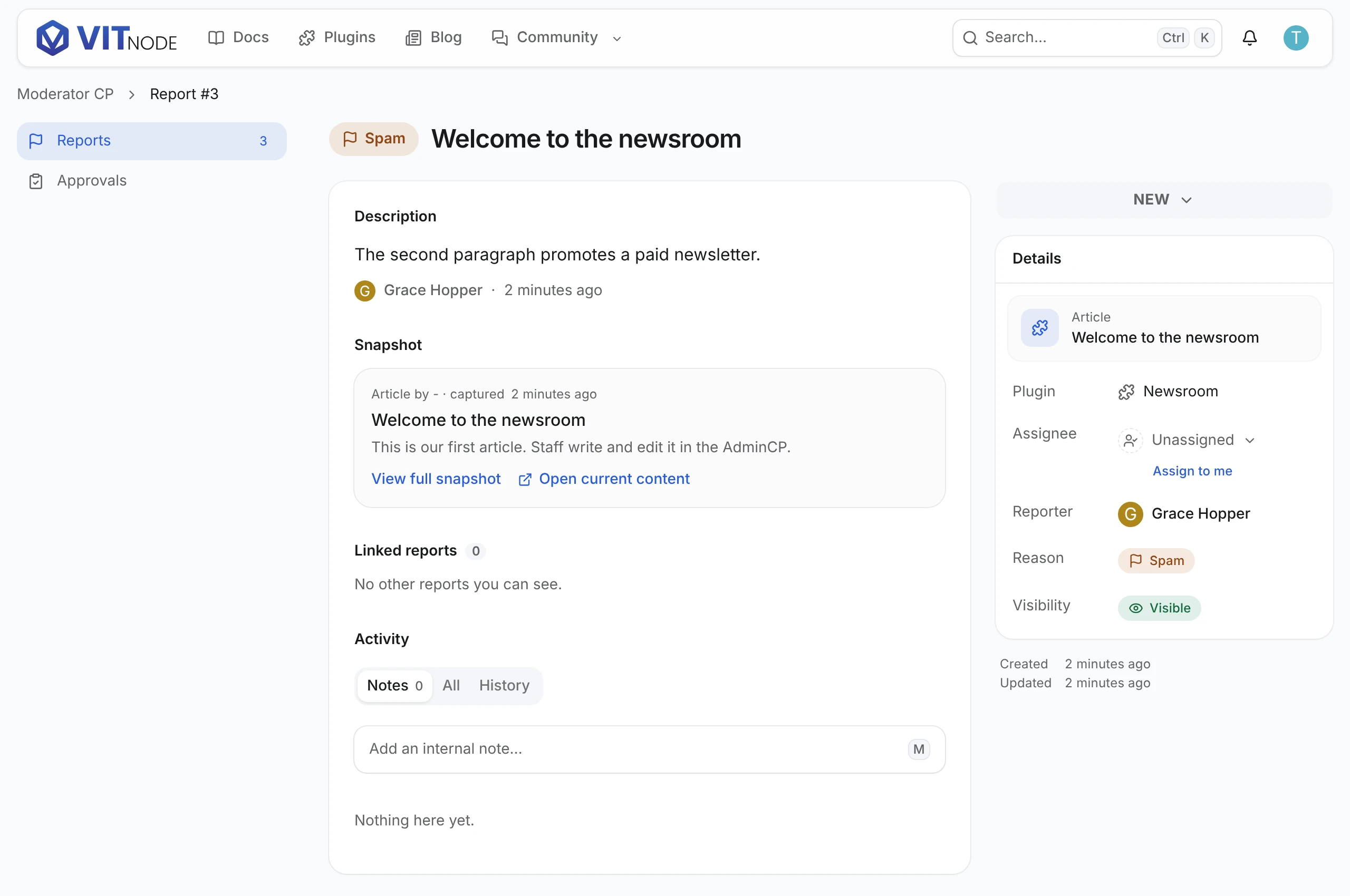
Open it. The report shows the reason, the reporter's details and a snapshot of the article as it was when reported. A staff-written article shows no author. Open current content links to /news/welcome-to-the-newsroom, the live article:
Process reports covers assigning, resolving and hiding.
Choose what moderators see
By default a report keeps the record's title and its public text, rich text, choice and file fields, frozen at the moment of the report. Pick the fields yourself when you want something else. They may even be private:
reports: { titleField: "title", snapshotFields: ["body"] },What the server checks
The button is only a hint. The report route checks again:
- The reader is signed in. A guest gets the sign-in prompt.
- The reader can read the record through the public API. A draft or a hidden record is
404. - One reader holds one open report per record, and files at most 20 reports an hour.
Report from a list or a comment
-
Every row of a list. Call the permissions hook once with every id on the page, and point each button at its row's title with
describedBy, so a screen reader hears which record each Report belongs to. The newsroom plugin's letters list does this inplugins/newsroom/src/pages/letters-page.tsx. -
Comments. The shared comment section reports through this same dialog: add
reportsto the comment type and areportcallback touseContentComments, as Comment actions shows. A comment has no title, so pointtitleFieldat its rich-text body: the report is titled with the comment's first 120 characters, andsnapshotFields: ["body"]keeps the whole text.reports: { titleField: "body", snapshotFields: ["body"], selfReport: true },selfReport: truelets authors report their own comments too, for when they want a moderator to look at something they wrote. Without it the Report button skips the author's own records, which is the default for every content type.ModCP links each report to the record's public URL, from
delivery.pathorsearch.pathTemplate. A comment has no page of its own, so give it a permalink that redirects to its place in the thread, as Link reports to the comment does for the Newsroom anddelivery: { path: "/blog/comments/:slug" }does for the Blog.
Related
- Comment actions: report, hide and delete comments from the shared comment section.