Moderation
Process reports
Review VitNode reports in the Moderator CP. Work the reports board, compare the snapshot with the live content, take a report, hide content and close it with an outcome.
The Moderator CP at /modcp/reports is where moderators work through reports, signed in with their normal account. This guide takes a spam report about a blog article from new to closed.
Before you begin
You need a moderator entry with can_view_reports for the content type, and can_manage_reports to change anything. Hiding and restoring content needs can_hide (which depends on can_view_hidden) plus can_manage_reports, because the action is recorded in the report. See Configure moderators.
Open the board
Choose Moderator CP in the user menu. Reports is a board with three columns, New, In progress and Done. It holds the reports you may view, newest first in each column:
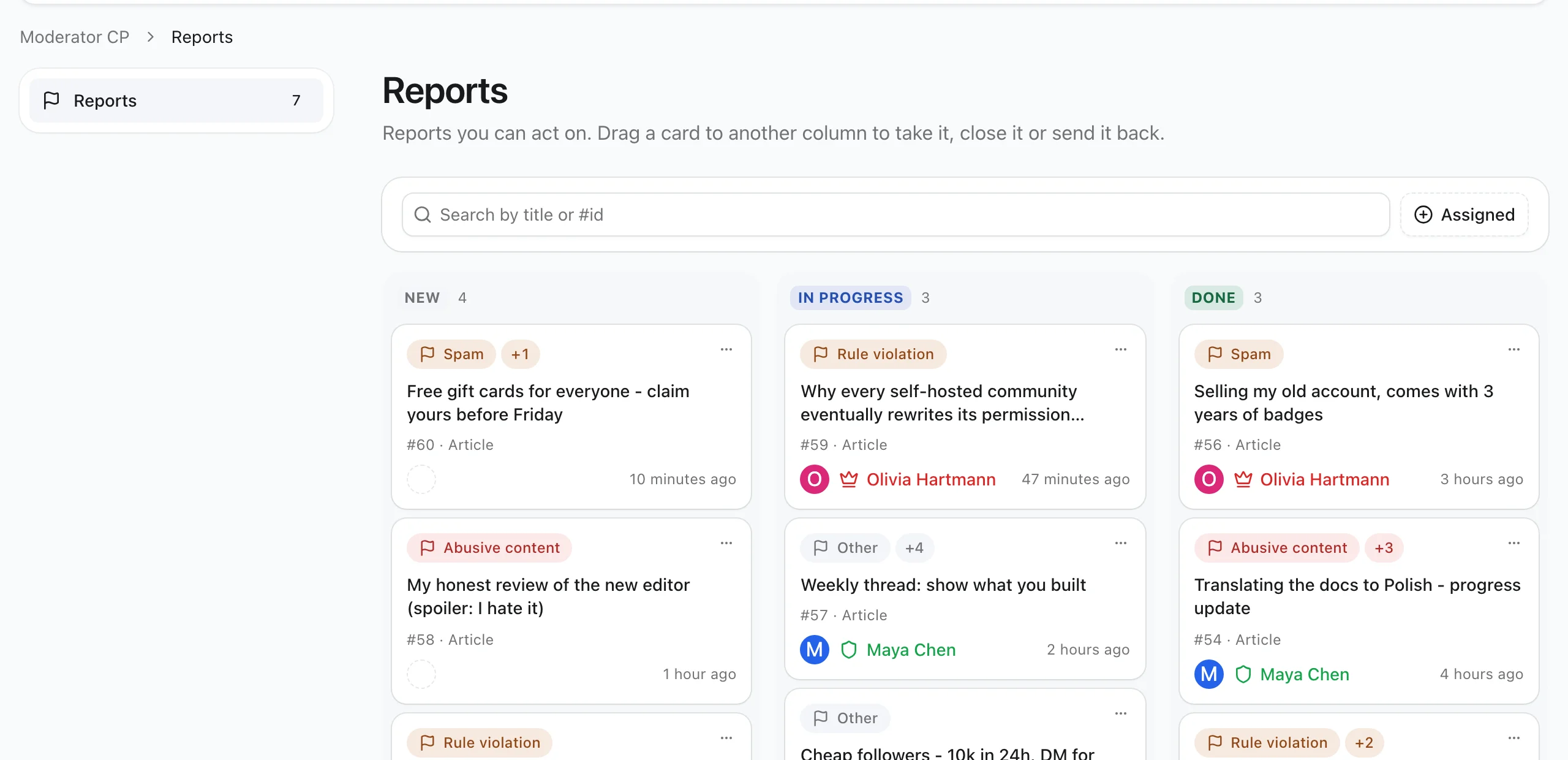
Search by title or report number above the board. Type at least three characters, like #12 or gift. Assigned narrows the board to your reports or the unassigned ones.
Search and the filter live in the address, so you can send a filtered board to another moderator as a link. Each column loads 20 cards at a time, and Show more loads the next 20.
The pill next to the reason, like +1, means other people reported the same content. It only counts reports you may view. Reports outside your scopes never appear, not even in the column counts.
Drag a card to another column to move it, and the column tells you what will happen before you let go:
| Move | What happens |
|---|---|
| New → In progress | The report is assigned to you. |
| In progress → New | The assignee is removed. |
| Any column → Done | The close dialog opens, so you pick an outcome first. |
| Done → New or In progress | The reopen dialog asks for a reason. |
The card moves right away. If another moderator changed the report first, you get a message and the card slides back to where the server says it belongs. Cards always sit in date order, so a moved card lands where its date puts it, not where you dropped it.
On a touch screen, press and hold a card to pick it up. With a keyboard, focus the grip next to a card's … menu, press Space, use the arrow keys to pick a column and press Space again. The … menu has the same moves under Move to.
Read the report
Open a report. The heading names the content type and its author. The main card starts with the Description, the reporter's own words, followed by the Snapshot, which is what the reporter saw at the moment they filed it. Choose View full snapshot to read it in a side panel. It never changes, even if the article was edited, its revisions were pruned or it was deleted.
On the right, Details opens with the reported content: its type, its title linked to the live page and the plugin it belongs to. Below are the assignee, the reporter and the author with their role colors, the reason and the Visibility of the content right now. Linked reports lists other reports about the same content, each with its reporter and the start of their text.
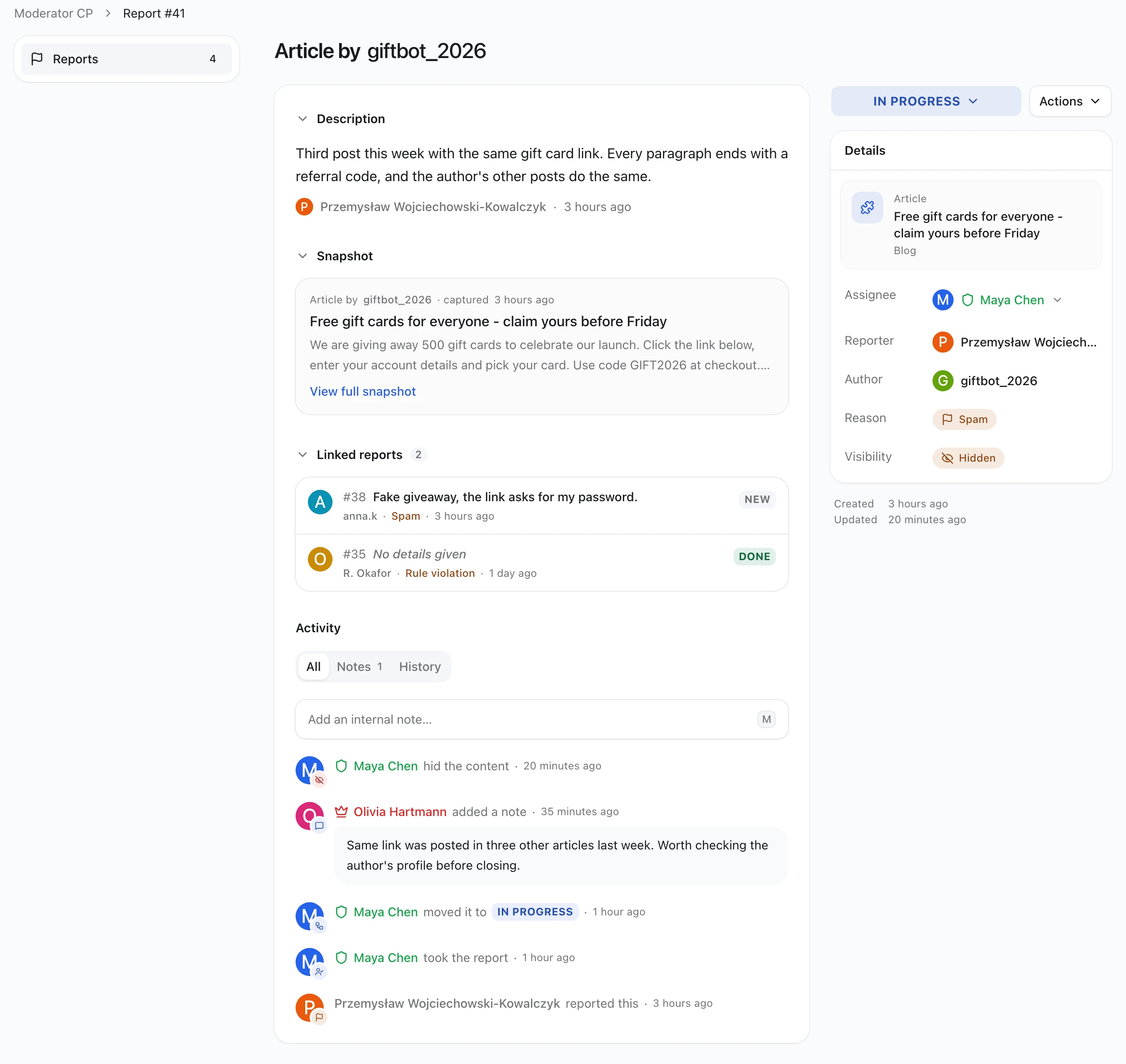
The snapshot names the language it was captured in. When the reader asked for another language and was served a fallback, it shows both. Files appear as names and sizes only. The report never copies the file itself.
Take the report
Drag the card from New to In progress, or open the report and choose Start progress in the status button (New), or Assign to me under the assignee. The report is assigned to you and moves to In progress. To hand it over, open the assignee and pick another moderator; the list shows only moderators who may manage this report. Stop progress unassigns you and moves it back to New.
When two moderators take the same report at once, one wins and the other sees Another moderator took this report first. Every change carries the version you loaded, so acting on a stale page refreshes it instead of overwriting someone else's work.
Note and act
Under Activity, choose Add an internal note or press M. Notes use the rich-text editor, and Cmd+Enter (Ctrl+Enter on Windows) saves them. They are visible to moderators only, never to the reporter or the author. Notes is the tab that opens first; All and History show the rest of the activity.
To change a note, open its … menu and choose Edit or Delete. You can always edit and delete your own notes. Editing or deleting another moderator's notes needs can_edit_notes or can_delete_notes. An edited note shows (edited), and History records every edit with the text before and after, and every deletion with the removed text.
Open Actions next to the status button, choose Hide content and confirm. The article leaves the public site, search and the sitemap at once, exactly like hiding it from the AdminCP. It gets a revision, the hidden event fires and VitNode revalidates the caches. The activity records the action only when it succeeds. Restore content brings it back.
Close the report
Drag the card to Done, or open the status button on the report and choose Close report. Pick an outcome, No violation, Action taken or Duplicate, and add an explanation for the other moderators if you like. When you already hid the content, Action taken is picked for you. Close report moves it to Done. Other reports about the same content stay open, because each reporter's report closes on its own.
On a closed report, the status button offers Reopen, which needs a reason that goes into the activity. Dragging the card out of Done asks for the same reason.
Check the result
The report sits in the Done column, and its activity lists the report, the assignment, your note, the hide and the resolution with names and times. Open the article signed out: it answers 404 while hidden. Open it as the moderator: it loads with the hidden notice, because can_view_hidden lets moderators inspect hidden content without any AdminCP edit permission.
Who sees what
- Reporters see only their own toast. Nothing about the report is public.
- Moderators with
can_view_reportssee the report, the reporter's name, the snapshot and the activity, for content in their scopes. Without it, a direct URL answers like a report that does not exist. - Moderators with
can_manage_reportscan also take, reassign, note, resolve and reopen, and edit or delete their own notes. - Moderators with
can_edit_notesorcan_delete_notescan edit or delete any moderator's notes. - Authors of the reported content never learn who reported it.
When content moves to a resource outside a moderator's scope, the report moves with it. The moderator loses access, and if the report was assigned to them, VitNode unassigns it and logs that in the activity. When the content is deleted, the report keeps its last known scope.