Moderation
Issue warnings
Warn a VitNode member from their profile, a comment, a report or the Moderator CP, preview the consequences, and revoke warnings or lift suspensions.
Moderators warn members with one shared form, opened from wherever the problem is. This guide warns a member for a blog comment, then revokes the warning and lifts the suspension it caused.
Before you begin
Warnings need warning reasons and a moderator entry with the right permissions. Grant them in AdminCP → Staff → Moderators:
| Permission | Where | Lets the moderator |
|---|---|---|
Warn authors of this content (can_warn) | The content type's module, for example Comment in the blog. Can be scoped | Warn the author of that content |
| Warn members directly, without content | Core → Warnings | Warn from a profile or the ModCP without content |
| Change a warning's points / Change when a warning's points expire | Core → Warnings | Override the reason's defaults, with an explanation |
| View every member's warnings | Core → Warnings | See all warnings, not only those in their scope |
| Read staff notes on warnings | Core → Warnings | Read private notes and override explanations |
| Revoke warnings | Core → Warnings | Revoke a warning |
| View suspensions / Lift suspensions | Core → Warnings | See and lift suspensions |
A moderator limited to one forum section can warn for content in that section only. Without Warn members directly they cannot warn from a profile, and without View every member's warnings they see only the warnings they issued or that belong to their scope. The member's total of active points is always shown, because a warning anywhere counts toward account-wide thresholds.
Open the warn form
Pick the entry point that matches what you are looking at:
| From | How |
|---|---|
| A comment | More actions (…) → Warn author |
| A report | Warn author under the status button in the ModCP report |
| A profile | Warn member on the warnings card in the profile's side column |
| The ModCP | Moderator CP → Warnings → Warn member, then pick the member and choose Continue |
Each button appears only when the server says you may use it.
Fill in the warning
The left side shows who you're warning: their active points, whether they're suspended and their last few warnings. No need to open their profile in another tab.
Pick a reason. Each one shows its points, when they expire and the admin's description of when to use it. The points, expiry and message follow the reason. If your permissions allow it, you can change the points or expiry and say why in Why the change?. Points can't go below zero.
- Message to the member is a rich-text editor: bold, lists and links all work. It starts as a one-line preview; click it to open the editor. With more than one language enabled, a language switch lets you write a version for each, and the member reads the one in their language. A reason's default message fills in every language it has.
- Staff note is rich text too, opens on click, and is private. The member never sees it, and only staff who can read notes do.
The footer shows the active points before and after this warning, plus any automatic action, such as a suspension. It's only a preview. The server calculates everything again when you submit, in case another moderator warned the member in the meantime.
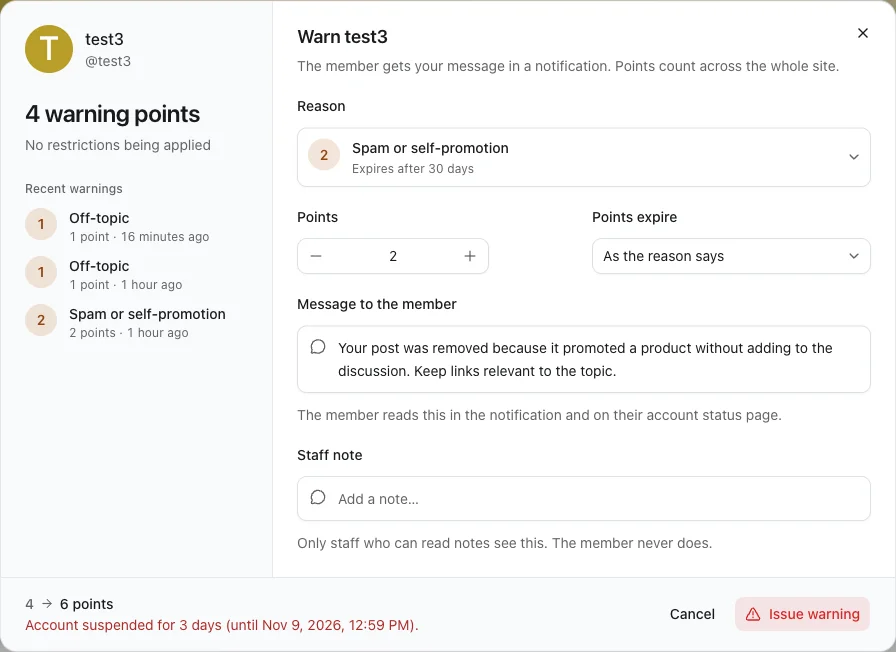
From a report, Also close the report as action taken closes it in the same step. If either part fails, neither happens. Without it, the report stays open and its timeline records the warning.
Submit
Choose Issue warning. The toast says how many active points the member has now and whether their account was suspended, from the server's actual result. If that differs from the preview, the toast says so. Sending the same form twice, for example after a network error, issues it once.
Revoke a warning or lift a suspension
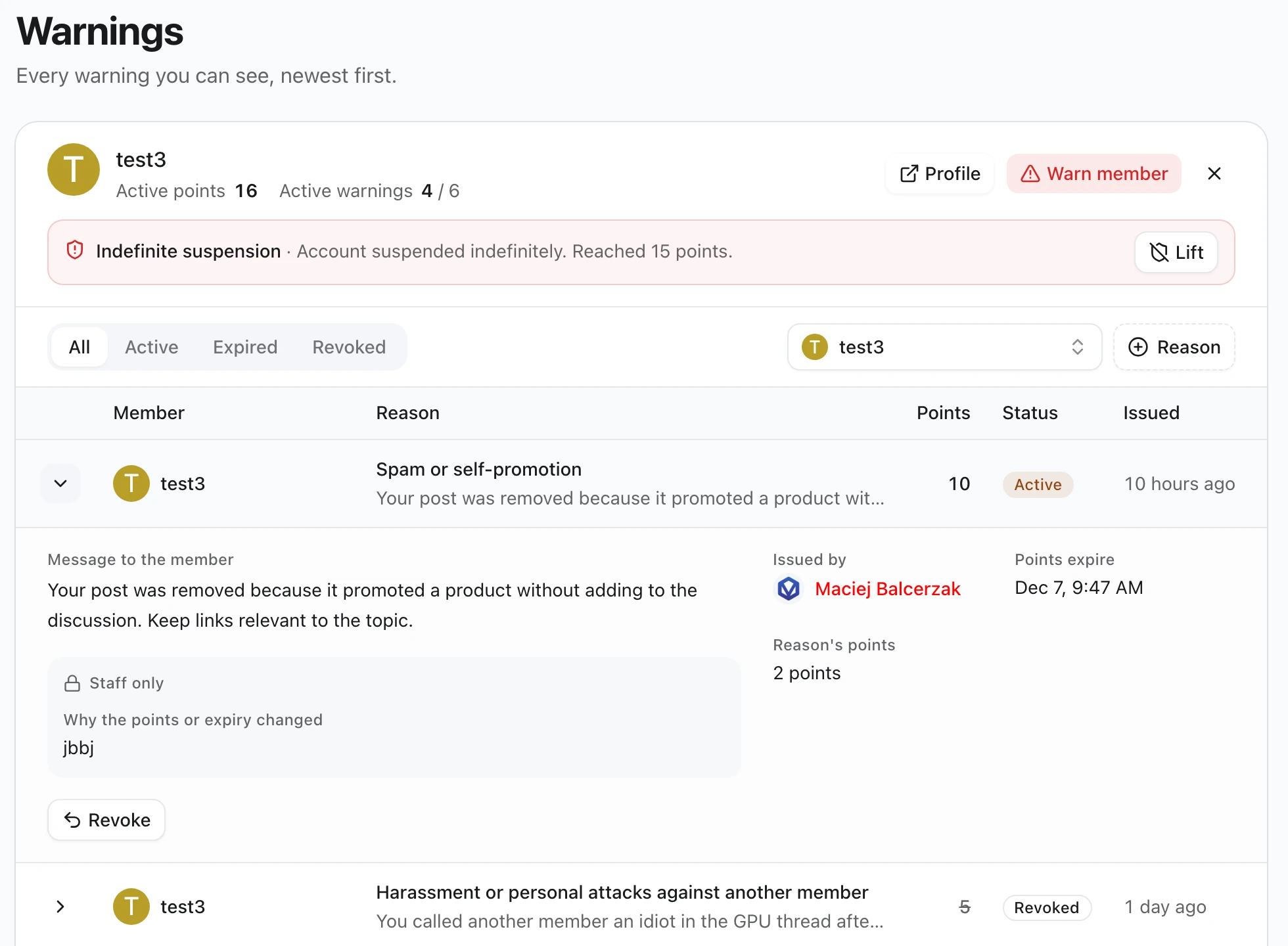
Open Moderator CP → Warnings and pick the member in the Member filter, or click their name in the list. The page filters to that member (?user= in the address, so you can share the link), and the top of the table shows their active points, active warnings and any active suspension. Expand a warning's row to read it and choose Revoke. Use Lift next to the active suspension.
On their profile, the warnings card does the same: the ↺ button next to a warning revokes it and the shield button next to an active suspension lifts it.
Revoke asks for a reason, which is kept for staff. The warning's points stop counting at once and the member is notified. The warning stays in the history, marked Revoked.
Revoking a warning never lifts the suspension it caused. Lift it separately with Lift on the suspension. Other active suspensions keep applying.
Check the result
Sign in as the warned member. A notification links to Settings → Account status, which lists the warning with your message and its points. If the warning crossed a threshold, the member is kept on the home page behind the suspension dialog, and commenting or reporting fails the way it would for a signed-out visitor.