Moderation
Configure moderators
Give a VitNode user or role moderator permissions in the AdminCP, and limit report permissions to selected resources such as categories.
You set up moderators on the same AdminCP screen as every other staff permission. This guide makes a user a moderator who handles blog reports everywhere and newsroom story reports only in some categories.
Before you begin
You need the staff_moderators admin permissions Create moderators and Edit moderator permissions, or a root role. The content types you want moderated must have reports enabled.
Add the moderator
Open AdminCP → Staff → Moderators and choose Add Moderator. Pick a role or a single user and save. The new entry grants nothing yet, and the AdminCP opens its permissions.
Grant report permissions
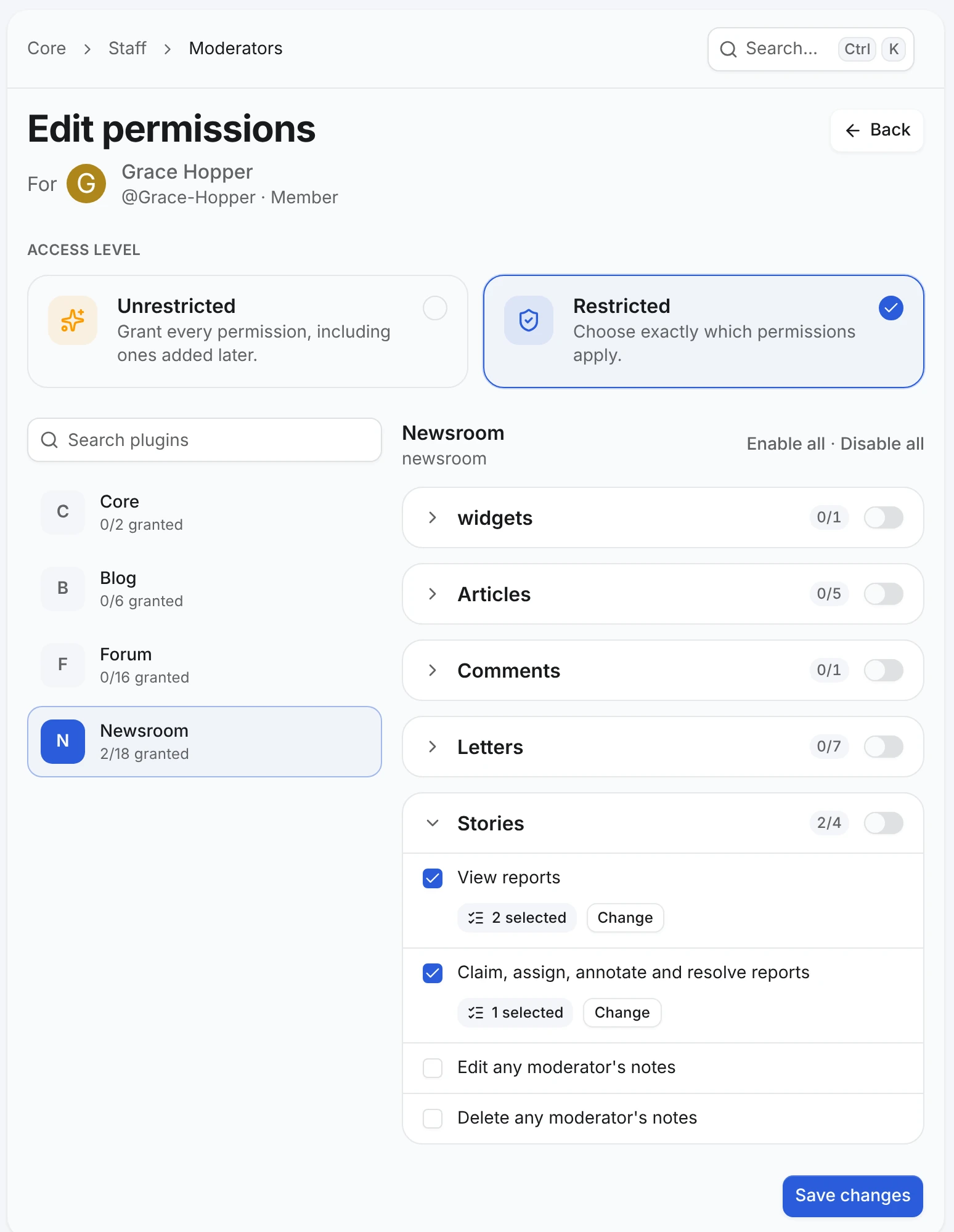
Keep Restricted selected. Pick a plugin on the left, open a module, and tick the permissions. For the blog, open Articles and tick View article reports, Claim, assign and resolve article reports, Open hidden articles and Hide and unhide articles.
A permission that depends on another one stays locked until its dependency is ticked. Hide and unhide articles needs Open hidden articles, so a moderator can always see what they hid.
Choose where a scoped permission applies
A scoped permission shows its scope under the checkbox: All resources, or the number of selected resources. Here the newsroom plugin's View reports covers two categories and the management permission covers one:
Choose Change to open the picker. All resources includes resources created later. Selected resources lists the family's resources with a search box, loading more on demand:
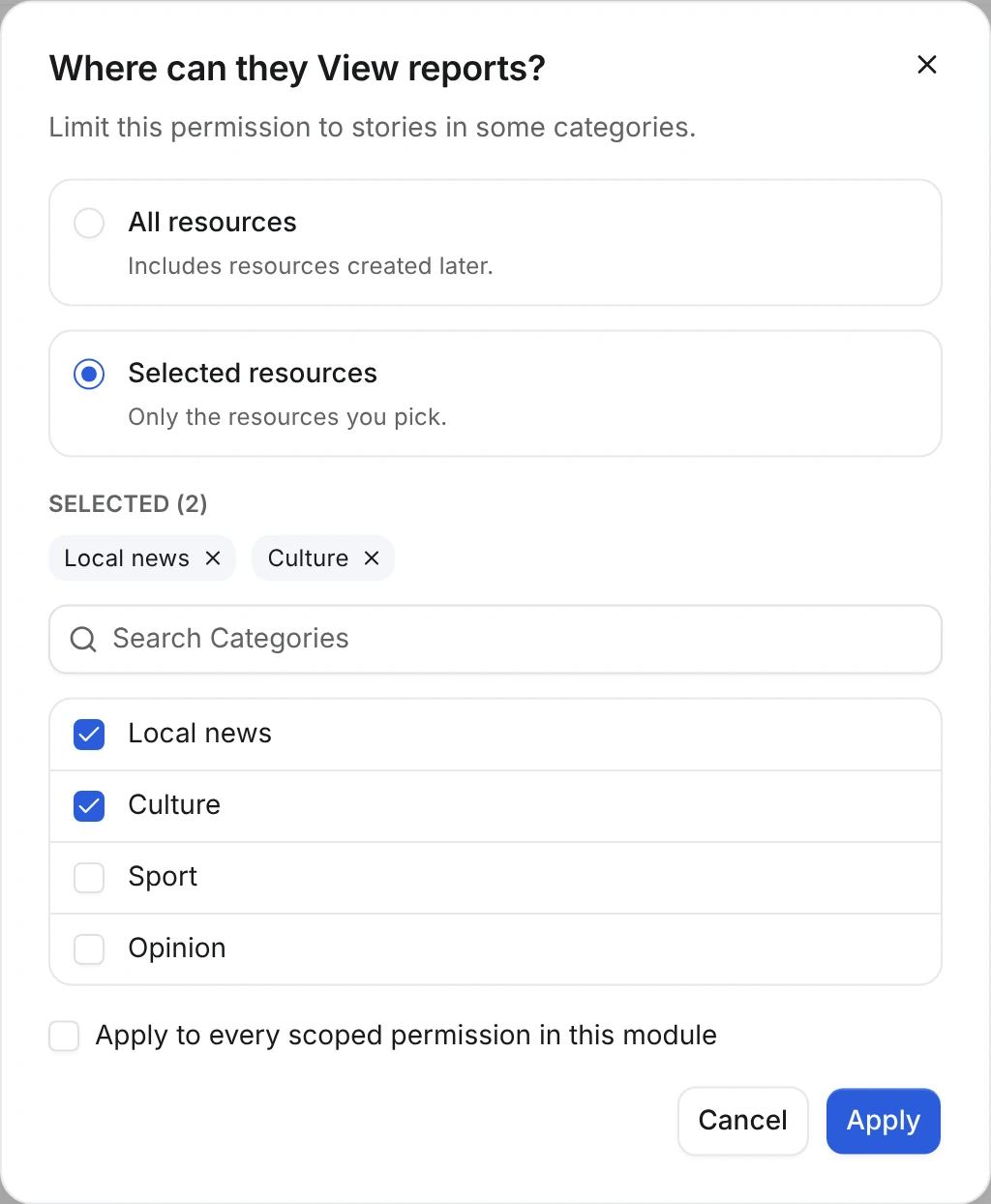
Tick Apply to every scoped permission in this module to copy the same scope to the module's other scoped permissions. Each permission still saves its own scope, so you can narrow one afterwards.
Save
Choose Save changes. The moderator's permissions apply on their next request. If a resource no longer exists, the picker marks it Removed. Take it out before saving.
Check the result
Sign in as the moderator. The user menu now has a Moderator CP link to /modcp/reports, and the reports board shows blog reports plus newsroom story reports from the two selected categories only. See Process reports.
When saving is refused
The form checks scopes before it sends them, and the API checks them again. Each problem is shown under the permission it belongs to:
| Message | What to change |
|---|---|
| Choose where permission applies | Open Change and pick All resources or some resources |
| Pick at least one resource for permission | A selection cannot be empty |
| Permission reaches further than dependency | Narrow the permission, or widen its dependency first |
| Permission names resources that no longer exist | Remove the resources marked Removed |
You can only grant what you hold yourself. An administrator whose own moderator permissions cover two categories cannot give a third one, or All resources, to somebody else. Only a root administrator can grant Unrestricted. Changing a role's permissions or a user's roles takes effect immediately. VitNode clears the cached permissions of every affected user.