Site offline mode
Take the public site offline from the AdminCP with a message in every language and an optional countdown to the opening.
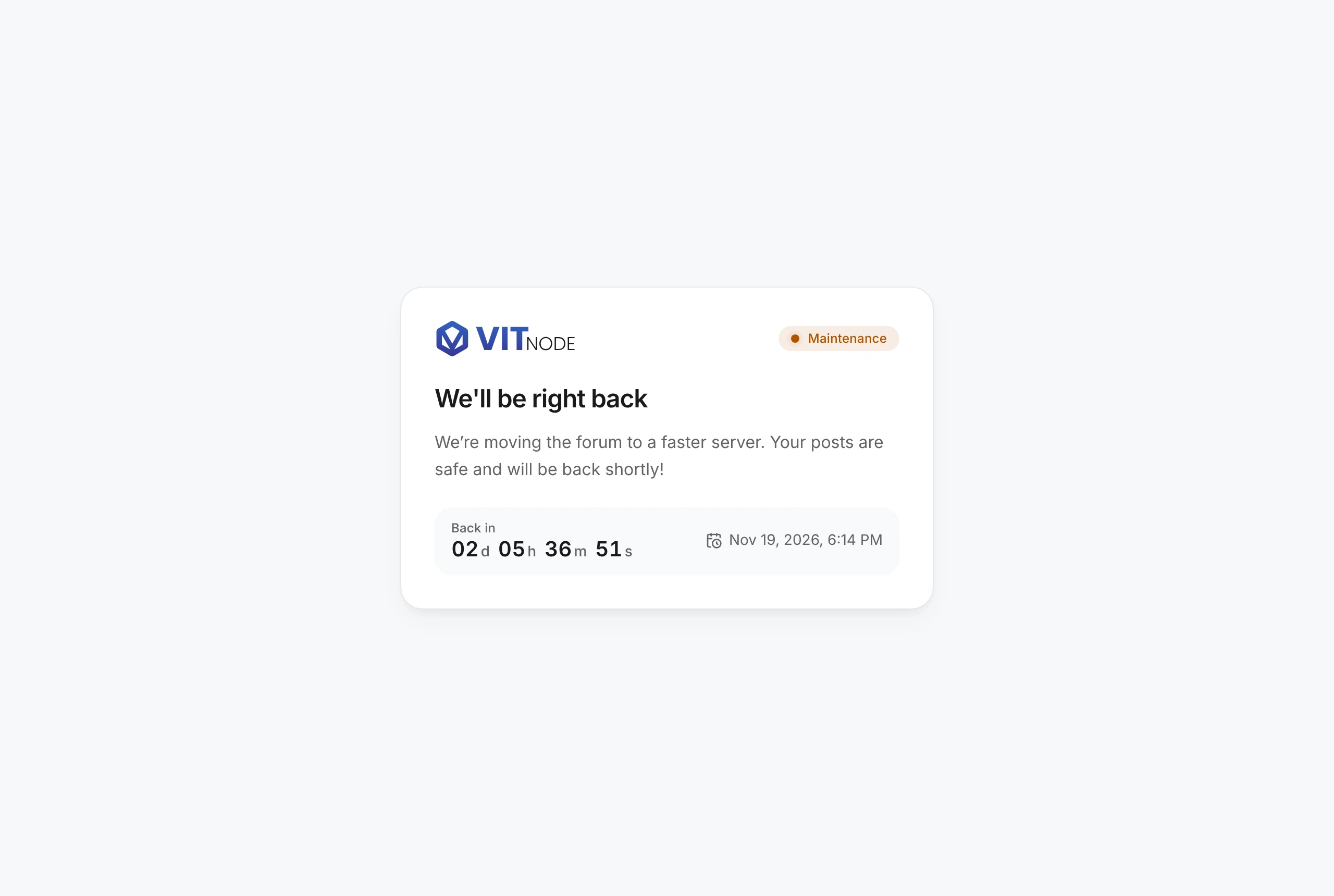
Site offline mode swaps the public site for a "We'll be right back" page while you upgrade, migrate or prepare a launch. Visitors see your message in their language and, if you set an opening time, a countdown. Admins, and moderators you allow, keep using the site as usual, so you can check everything before you open the doors.
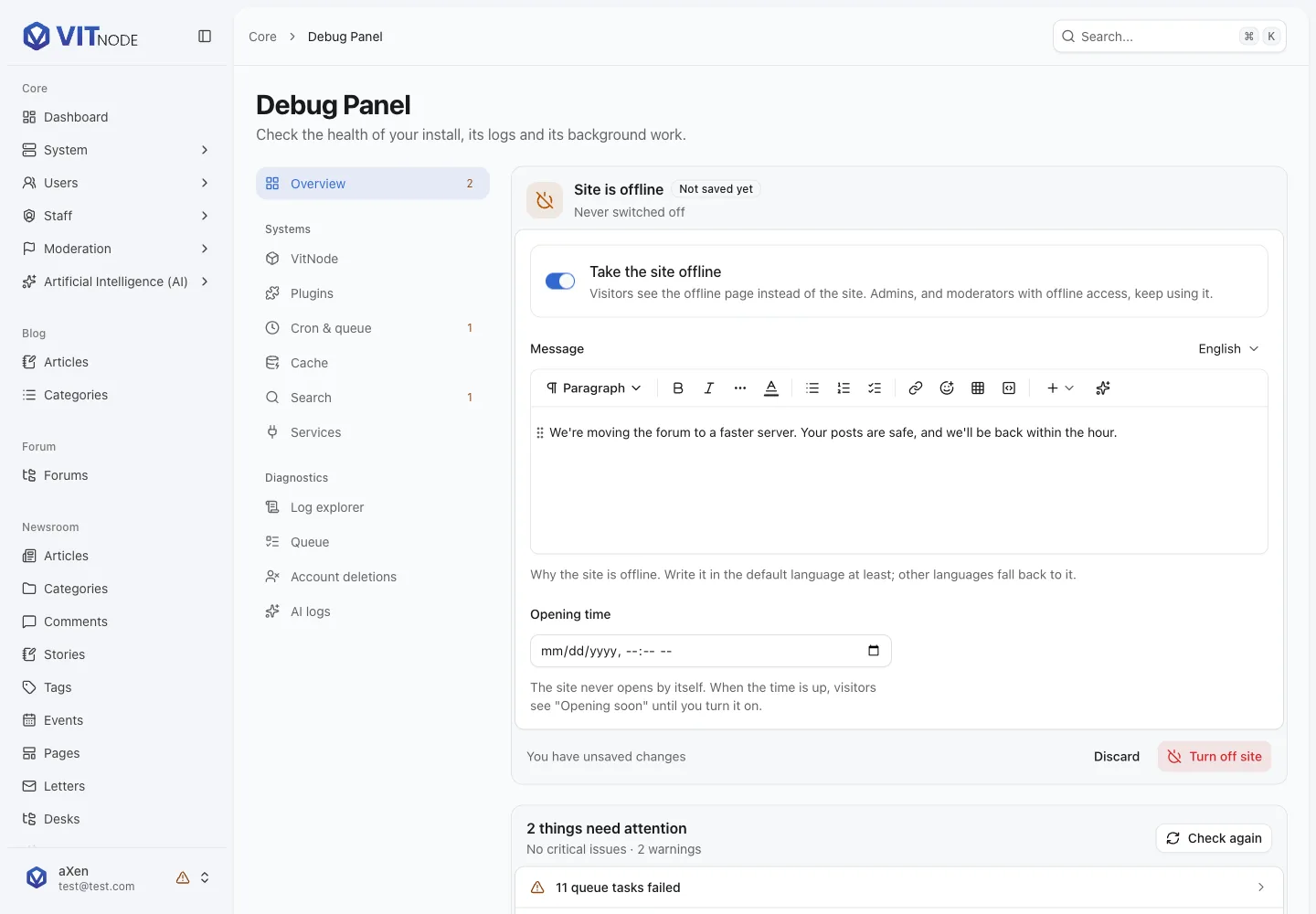
Turn the site off
Open the site status card
Go to AdminCP → Debug Panel. The Site status card sits at the top of Overview. To see it you need two staff permissions, Debug Panel → View debug panel and Site status → View. Changing it takes Site status → Manage.
Switch it off and write the message
Turn on Take the site offline, and the Message and Opening time fields unfold below the switch. Write why the site is off in Message. The editor has a language switcher, and the default language is the one you can't skip. A visitor whose language has no message gets the default one.
Set an opening time (optional)
Pick an Opening time to show visitors a live countdown with rolling digits and the date. Turn off Show countdown to show the date alone.
The site never opens by itself. Once the opening time has passed, visitors see Opening soon until an admin turns the site on.
Save
A footer slides in at the bottom of the card once something changes. Select Turn off site in it, or Discard to drop your changes. The card turns to Site is offline.
While the site is offline, AdminCP → Debug Panel lists it as a warning (with the opening time) and counts it in the warning badge next to your name, so nobody forgets it is off. Select the warning to jump to the Site status card.
To open the site, turn off Take the site offline and select Turn on site in the card's footer. Offline pages that are still open check the status every minute and load the site on their own.
What visitors and staff see
| Who | What they get |
|---|---|
| Guests and members | The offline page on every public URL, with an HTTP 503 status |
| Admins | The full site, with an Offline pill in the bottom corner (click it for details and a link to the site status) and an (Offline) prefix on every page title |
| Moderators with Access the site while it's offline | The same as admins |
| Other moderators | The offline page, like any member |
Anyone on /login | The sign-in pages. The offline page has no sign-in link, so staff open /login or /admin directly |
| AdminCP | Works as usual; it needs an AdminCP session anyway |
The 503 answer tells search engines the outage is temporary, so they keep your pages indexed. It carries Retry-After when the opening time is set, and the page cache never stores it.
Let moderators in
Admins always pass. A moderator passes only with the moderator staff permission Site status → Access the site while it's offline. Give it to a moderator or a moderator role in AdminCP → Staff → Moderators. Root roles and unrestricted moderators hold it already. The server makes the call, so the offline page, the 503 and the API never disagree about who gets in.
Keep a route working while offline
While the site is offline, every API route answers callers who may not use the offline site with 503 { "error": "site_offline" }, so content cannot be read around the offline page. Routes under /admin/ and routes with adminStaffPermission are never blocked.
Set allowWhenOffline on a route that an offline site still needs, such as a payment webhook or a sign-in step:
import { buildRoute } from "@/api/builders";

export const orderWebhookRoute = buildRoute({
  allowWhenOffline: true,
  route: {
    method: "post",
    path: "/webhook",
    responses: { 200: { description: "Received" } },
  },
  handler: c => c.body(null, 200),
});
Core already allows signing in, password reset, e-mail verification, SSO, passkey sign-in, cron, payment webhooks and content preview links.
Read the status in your code
siteStatusQueryOptions reads the public status with the fetcher, in a loader or a component:
import { useQuery } from "@tanstack/react-query";
import { siteStatusQueryOptions } from "@vitnode/core/tanstack/site-status";
import { useFormatter } from "use-intl";

export const LaunchBadge = () => {
  const format = useFormatter();
  const { data } = useQuery(siteStatusQueryOptions());
  if (!data?.offline || !data.opensAt) return null;

  return (
    <span>
      Opens {format.dateTime(new Date(data.opensAt), { dateStyle: "medium" })}
    </span>
  );
};
To react when an admin switches the site, listen to the site.status.updated event.
Custom public layouts
ThemeLayoutContent from @vitnode/core/tanstack/layout shows the offline page for you, as long as your _main route's loader calls loadMainShell(context, { location }). A layout that does not use ThemeLayoutContent wraps its content in SiteOfflineGate from @vitnode/core/tanstack/site-status.