Reactions
Let members react to VitNode Content Engine records and comments with the reactions option and ReactionBar, and earn their authors reputation.
reactions lets members react to your content with emoji, icons or custom images, and every reaction moves the author's reputation. Agreeing with a post no longer takes a reply that says "this". This page adds reactions to the newsroom's articles and to the comments under them.
Before you begin
You need a content type with a public API and a public record page, such as the article page from Content page. For the comment part, you need the comment section from Threads. Sign in with a member account to react.
Turn on reactions
Edit src/content/article.ts and add reactions. This is an excerpt:
  publicApi: {
    path: "news",
    fields: ["id", "title", "slug", "body", "publishedAt"],
  },

  reactions: true,
Reactions live in core tables, so there is nothing to migrate. The content type registers a reaction target named after its id, newsroom.article, and GET /api/newsroom/content/news/permissions starts answering canReact.
reactions has one option:
| Name | Type | Default | Description |
|---|---|---|---|
reputation | boolean | true when there is an author | Move the author's reputation by each reaction's points. |
The author is the search.authorField, or else the publicWrite.ownership field. A record without either still gets reactions, just no reputation. Whether authors may react to their own records is a role setting, Can react to own content, not code.
Add the reaction bar
Edit src/pages/article-page.tsx. Import ReactionBar and render it below the article body. These are excerpts:
import { contentTarget } from '@vitnode/core/content'
import { ReactionBar } from '@vitnode/core/tanstack/reactions'

import { articleContentType } from '@/content/article'
import { manifest } from '@/manifest.gen' <RichTextContent content={item.body} />
<ReactionBar
target={contentTarget(manifest.id, articleContentType, item.id)}
ReactionBar reads the counts and the visitor's own reactions in the browser, so the cached page stays the same for everyone. It loads its own messages, shows a skeleton while it loads. Guests see the counts only: no picker and no "who reacted".
Add reactions to comments
Turn on reactions for the comment type too:
  reports: { titleField: "body", snapshotFields: ["body"] },
  reactions: true,
Then pass a reactions callback to useContentComments, next to report. This is an excerpt of src/pages/article-comments.tsx:
    report: id => contentTarget(manifest.id, commentContentType, id),
    reactions: id => contentTarget(manifest.id, commentContentType, id),
ContentComments draws a reaction bar under every visible comment, next to Reply. A page of 50 comments reads all their reactions in one request. If you render comments yourself, read item.reactionTarget from useContentCommentItem and pass it to ReactionBar.
Check the result
Sign in as a member who did not write the article and open it. A reaction bar shows below the body and under each comment. Click the smiley button and pick a reaction:
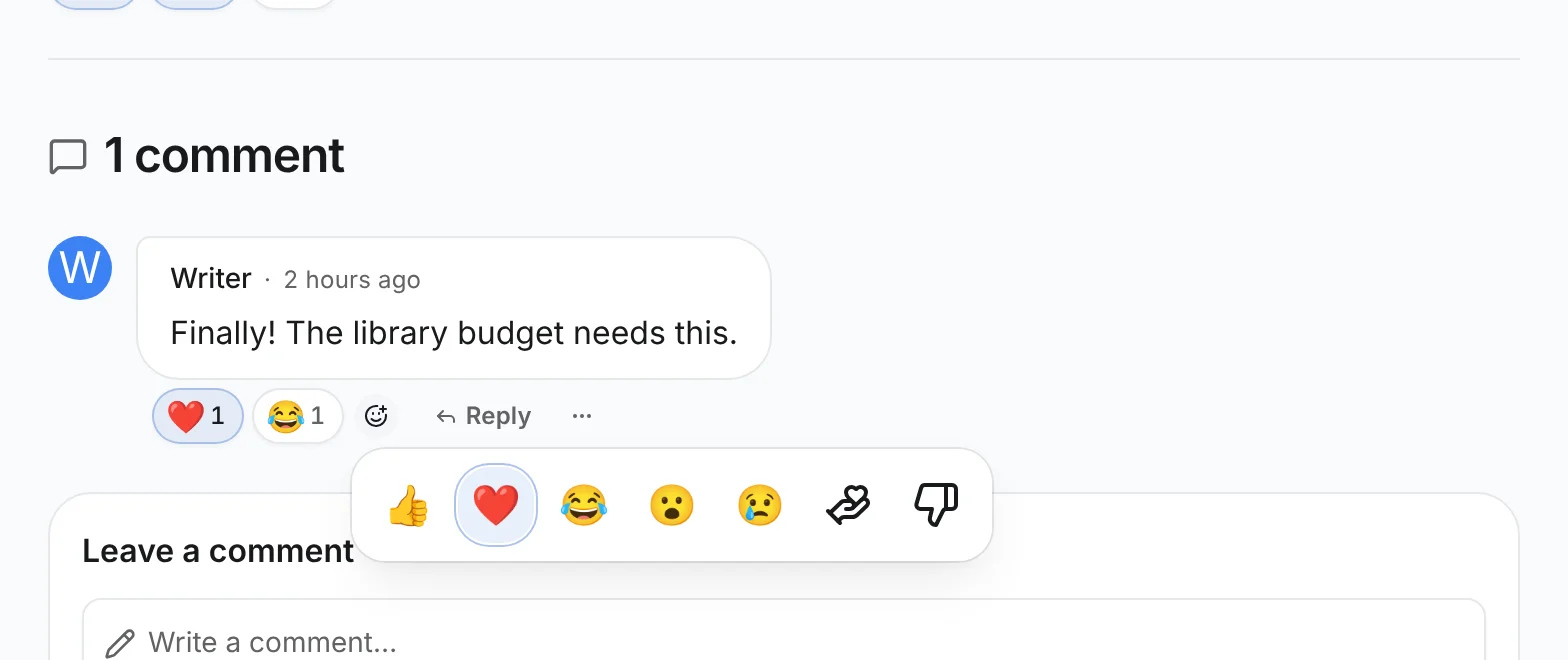
The pill appears pressed with a count. Counts of 1,000 and more are shortened, such as 1.2K. Pick another reaction. With the default role settings it replaces the first one, because a member gives one reaction per item. Open the article in a second browser as another member. While the WebSocket runs, their reactions appear in yours without a reload.

Hover a pill to see who gave that reaction. The card names the first five people and links to the full list, filtered to that reaction. A pill you can't press, such as one on your own article, opens the list when you click it. The author's profile shows their reputation, and the member's profile timeline lists the reaction.
What the server checks
ReactionBar only hides what will not work. PUT /api/@vitnode/core/reactions checks again:
- The member is signed in and can read the record through the public API. A draft or a hidden record answers
404. - One of the member's roles can react and may use this reaction.
- Authors cannot react to their own records unless one of their roles has Can react to own content.
- The member is under the role's limits: reactions per item, per day in total and per day for this reaction.
Deleting a record removes its reactions and takes back the reputation they gave.
Related
- Manage reactions: add your own reactions and set role limits in the AdminCP.
- Custom targets: add reactions to items that are not Content Engine records.