Category access
Make each record of a VitNode content type an access scope, like Blog categories, and file other records under several of them. A record is readable only when every one of its scopes allows it.
A content type can hold access scopes of its own: every record gets view, read, comment and download rules, like a forum does. The Blog plugin uses this for categories, and an article is readable only when every one of its categories allows it.
Use it when the scopes are records you already manage in the AdminCP, such as categories or tags, rather than a container tree. The actions, audiences and prerequisites are the same as for containers.
Before you begin
You need a content type for the scopes and one filed under them through a relation. In the Blog plugin these are blog.category and blog.post, whose categoryId is a to-many relation to categories.
Make each category a scope
Add access: { scope: true } to the scope content type:
export const blogCategoryContentType = defineContentType({
  id: "blog.category",
  tableName: "blog_categories",
  access: { scope: true },
  // localization, fields and admin stay as they are
});
Every action starts open to everyone. { scope: { defaults: { comment: { mode: "members" } } } } starts one stricter for every category.
File articles under their categories
Point the article's access.from at the relation:
export const blogPostContentType = defineContentType({
  id: "blog.post",
  tableName: "blog_posts",
  publication: true,
  access: { from: "categoryId" },
  fields: {
    categoryId: field.relation({
      min: 1,
      multiple: true,
      onDelete: "restrict",
      target: () => blogCategoryContentType,
    }),
    // the other fields stay as they are
  },
});
Comments need nothing: a record that answers a parent through its thread root, like blog.comment under its article, follows the parent's access.
Restrict a category
Open AdminCP → Categories (/admin/content/blog/categories). In a category's row, choose Access (the lock button beside Edit). Turn off Inherit under Read, untick Guests and Signed-in members, then open Roles and leave only the role you want ticked. Choose Save access.
The article editor shows Who can see this under the categories field. It asks the server what the selected categories require together, so it is right before you save.
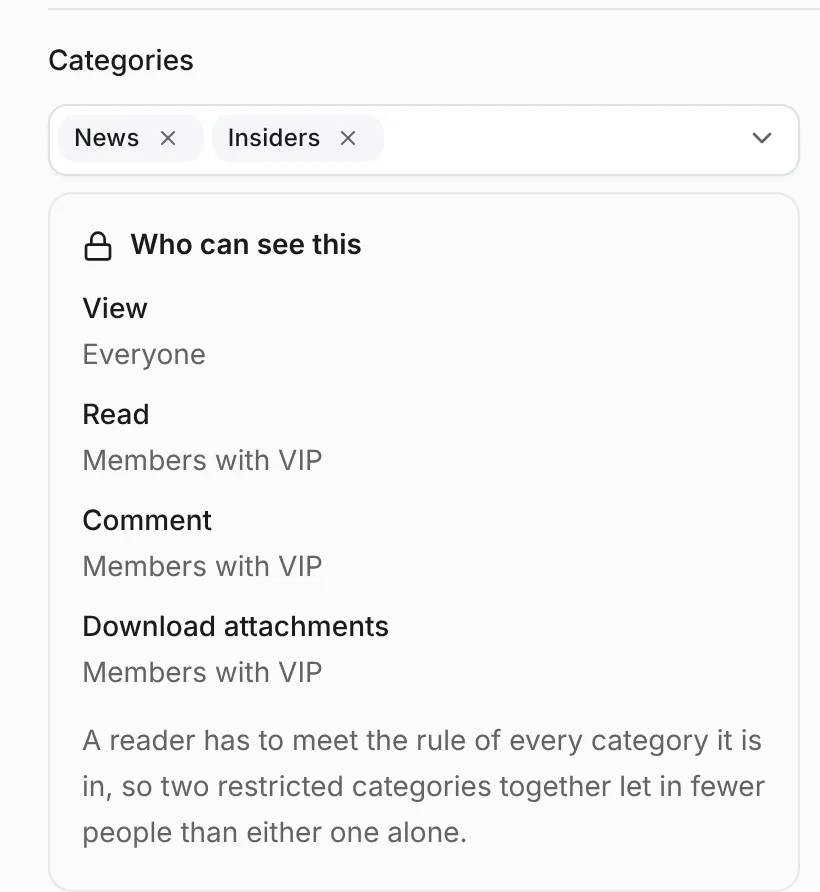
How several categories combine
An article needs all of its categories' rules. Inside one category, a member with any of the ticked roles gets in; across categories, the rules add up:
| Category A | Category B | Who can read the article |
|---|---|---|
| Everyone | Everyone | Everyone |
| Everyone | VIP | Members with VIP |
| VIP | Staff | Members with both VIP and Staff |
| VIP or Staff | Members | Signed-in members with VIP or Staff |
Adding a category can only narrow who reads an article, never widen it. The article editor warns about this under Who can see this.
A category a reader may not see is left out of the category list and its counts. An article they can read only ever names categories they can see, because reading it needs every one of them.
Check the result
Create two categories, "News" (open) and "Insiders" (Read: a role). Publish one article in "News" and one in both. Signed out, /blog lists only the first; /blog/category/insiders asks you to sign in, and the second article's address does too. Signed in with the role, both articles show, and their comments work as before. Search for the second article's title in both states: only the member with the role finds it.