Rich text
Store formatted Content Engine text with field.richText, render it on a public page with RichTextContent, and turn it into plain text or HTML.
field.richText() is the Content Engine field for formatted text: headings, lists, links, tables, task lists and panels. Editors write it in the AdminCP with the Tiptap editor. Readers get plain HTML from RichTextContent, a small React component that never loads the editor, so the public page stays light. Your readers came for the article, not for an editor they will never type in.
Define a rich text field
Add the field to a content type. The blog plugin's article body is the typical case:
import { defineContentType, field } from "@vitnode/core/content";

export const blogPostContentType = defineContentType({
  id: "blog.post",
  tableName: "blog_posts",
  fields: {
    title: field.text({
      localized: true,
      required: true,
      minLength: 3,
      maxLength: 255,
    }),
    content: field.richText({ localized: true, required: true }),
  },
});
The excerpt leaves out the blog's localization block, which localized: true needs; see Translations.
The column is jsonb, and the value is a ProseMirror document, the same JSON that Tiptap's editor.getJSON() returns:
{
  "type": "doc",
  "content": [
    { "type": "paragraph", "content": [{ "type": "text", "text": "Hello!" }] }
  ]
}
The Content Engine validates every write. The value must be a doc, nest at most 64 levels deep, and fit in maxBytes as UTF-8 JSON (1 MB by default, up to 16 MB). With required: true, a document without any text or media is refused, so an empty editor cannot be saved. A rich text field has no default, so set required or nullable.
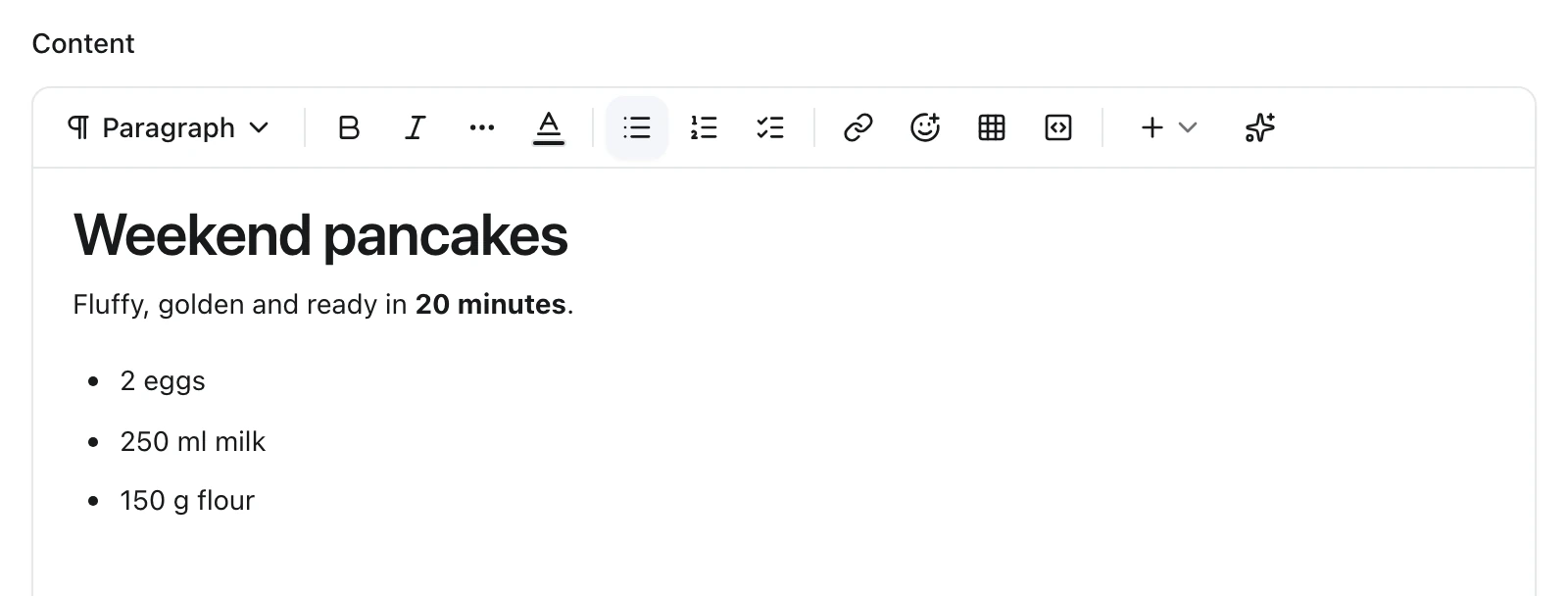
The AdminCP form shows the editor for the field, and it loads the editor only when the form has a rich text field:
Render it on a public page
Import RichTextContent from @vitnode/core/components/rich-text and pass the document. It works during SSR and in the browser. Validate the API response with zodRichTextDocument:
import { RichTextContent } from "@vitnode/core/components/rich-text";
import { zodRichTextDocument } from "@vitnode/core/content";
import { z } from "zod";

const zodBlogPost = z.object({
  content: zodRichTextDocument,
  title: z.string(),
});

const BlogPostPage = ({ item }: { item: z.infer<typeof zodBlogPost> }) => (
  <article>
    <h1>{item.title}</h1>
    <RichTextContent
      className="text-foreground leading-relaxed text-pretty"
      content={item.content}
    />
  </article>
);
The output is wrapped in <div class="tiptap"> and uses the same classes as the editor, such as list-disc, tableWrapper and tiptap-panel. Import @vitnode/core/styles/tiptap.css in your app stylesheet to style it, as apps/web/src/styles.css does.
RichTextContent treats the document as untrusted input:
- Links keep only
http:,https:,mailto:,tel:, relative and#targets. Ajavascript:ordata:link renders as plain text. - Images and other media keep only
http:,https:and relative sources. - A link that opens a new tab gets
rel="noopener noreferrer nofollow". - Inline styles come from an allowlist: text colors, font sizes with a unit and text alignment.
- An unknown node renders its children, and an unknown mark renders plain text.
Replace a renderer
Pass nodes or marks to change how one type renders. The keys are ProseMirror type names, and each renderer receives the node (or mark) and its already rendered children:
<RichTextContent
  content={item.content}
  nodes={{
    heading: ({ children, node }) =>
      node.attrs?.level === 2 ? (
        <h2 className="scroll-mt-20">{children}</h2>
      ) : (
        <h3>{children}</h3>
      ),
  }}
/>
A custom renderer is your code, so the built-in link and style allowlists do not run for it. Check anything it reads from attrs; sanitizeRichTextHref from @vitnode/core/components/rich-text cleans a link.
Get plain text or HTML
Three helpers work on the server and in the browser without React. Import them from @vitnode/core/content or @vitnode/core/components/rich-text:
| Helper | Returns | Use it for |
|---|---|---|
richTextToPlainText(doc) | string | Search, excerpts, AI prompts, word counts. One line per block, no markup |
richTextToHtml(doc) | string | Emails and feeds. Escaped, with the same allowlists as RichTextContent |
isRichTextEmpty(doc) | boolean | Checking whether a document has any text or media |
import { richTextToPlainText } from "@vitnode/core/content";

const words = richTextToPlainText(post.content).split(/\s+/).length;
The Content Engine already uses them. Site search indexes the words of a rich text field listed in search.contentFields. A rich text field named in delivery.seo.descriptionField or fallbackDescriptionField becomes a plain text description, which is how the blog fills its meta description from content. The revision history compares documents as text.
Use the editor in your own form
Outside the Content Engine, AutoFormEditor from @vitnode/core/components/form/fields/editor stores an HTML string by default. Add format="json" to store a ProseMirror document instead:
<AutoFormEditor {...props} format="json" label="Body" />The Editor page covers the component itself.
Check the result
Open AdminCP → Blog → Articles → Create Article, write a heading and a list in Content and save. The public article shows the same structure, rendered by RichTextContent without loading Tiptap, ProseMirror or Yjs.
Several editors can type into the same rich text field at once; Live editing covers co-editing and presence.