Reactions
Manage reactions
Add emoji, icon or uploaded GIF reactions in the VitNode AdminCP, set their reputation points and roles, and limit reactions per role.
The reactions members can use, what they are worth and who may use them are AdminCP settings. This page adds a reaction and limits it for one role.
Before you begin
Sign in to the AdminCP with an admin who holds reactions:can_manage (a root administrator holds it) and, for role limits, roles:can_edit.
Open the reactions
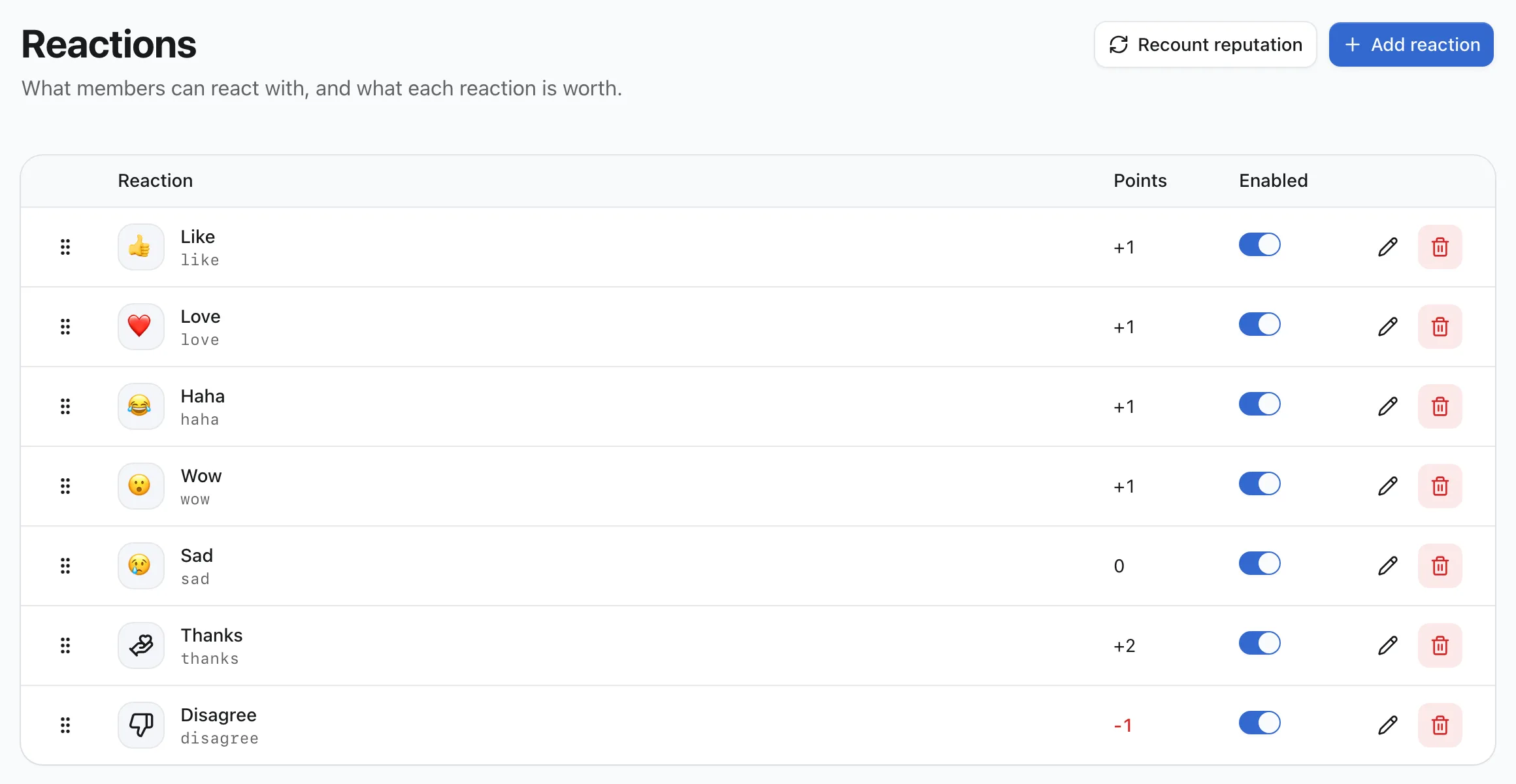
Open AdminCP → Users → Reactions. A new installation starts with seven reactions, from Like (+1) to Disagree (-1). Drag the handles to change the order members see.
Add a reaction
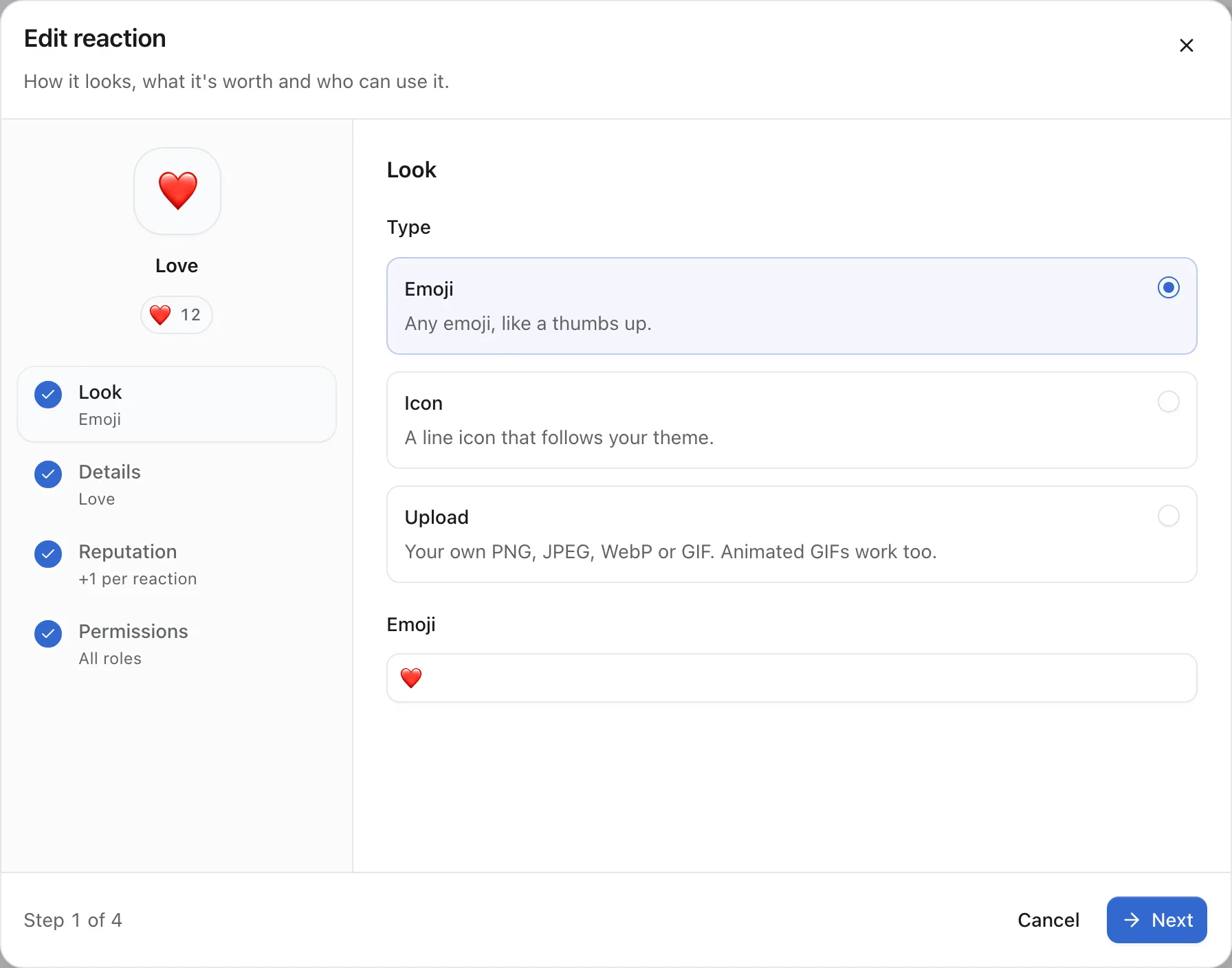
Click Add reaction. The dialog has four steps: Look, Details, Reputation and Permissions. Click Next, or jump to a step in the list. A tick means the step is filled in, and red means it needs a fix. The preview on the left shows the reaction the way members will see it.
Start with its look:
- Emoji or icon: any emoji, or a Lucide icon drawn in your theme's text color. One picker has both, in two tabs.
- Upload: drop or choose a PNG, JPEG, WebP or GIF up to 512 KB. Animated GIFs work, so the party parrot is allowed. People who prefer reduced motion see a still first frame. Big images are scaled to fit 256x256.
Then fill in the Title members see, a Code such as party-parrot, and the Reputation points, from -100 to 100.
Under Permissions, leave All roles can use it on, or turn it off and check the roles that may. Either way, give a role a daily limit or leave it Unlimited. The Add reaction button is on the last step.
Changing the points of an existing reaction applies to past reactions too. VitNode recounts the reputation of everyone who received it in the background. Recount reputation recounts everyone. It asks first, because it replaces each member's reputation with their reaction total, so reputation from anywhere else, like a manual edit, is lost.
Set role limits
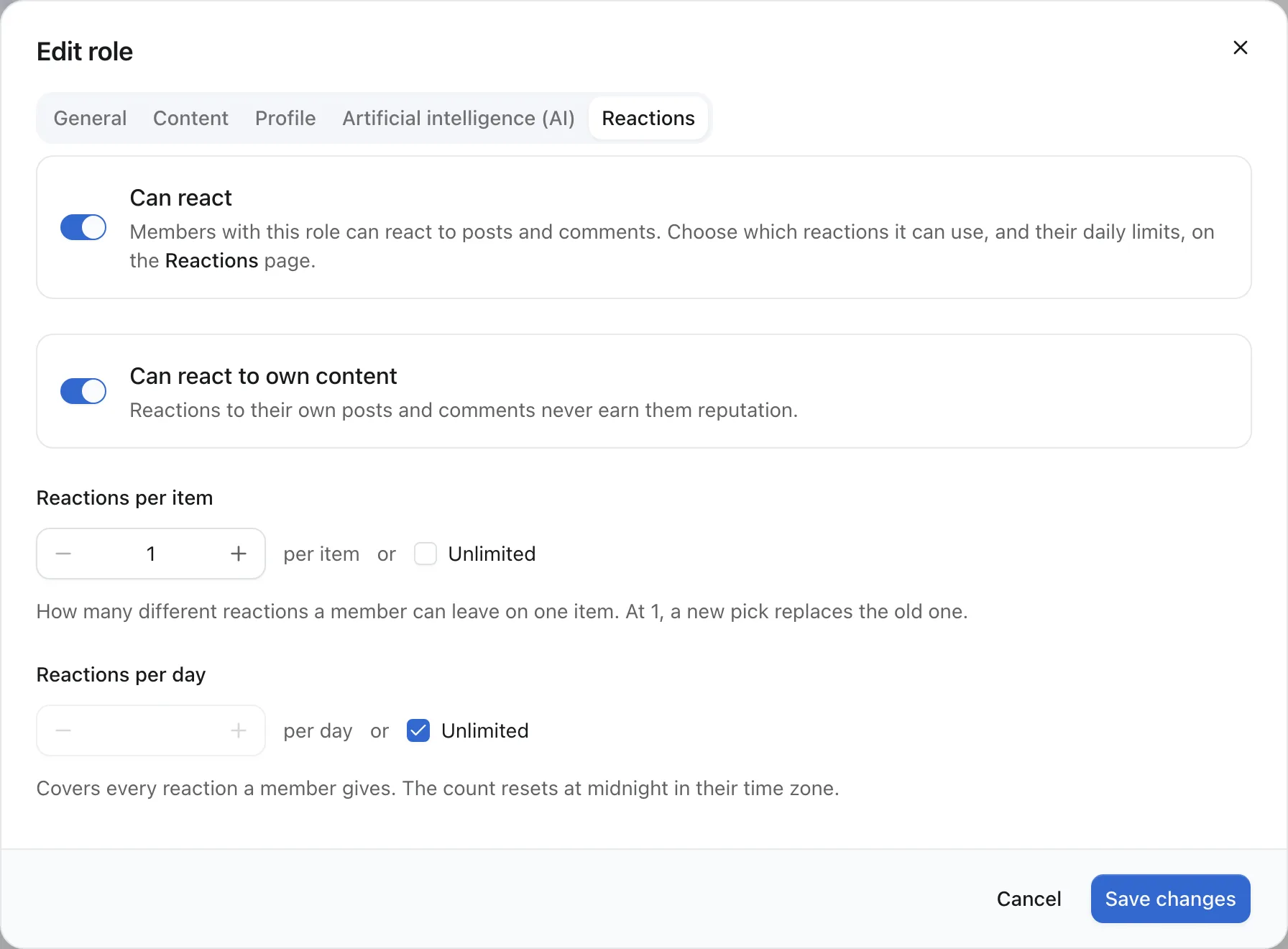
Open AdminCP → Users → Roles, edit a role and open the Reactions tab:
| Setting | Default | What it does |
|---|---|---|
| Can react | On | Members with this role can react. Off for the Guest role. |
| Can react to own content | On | Members can react to posts and comments they wrote. Those reactions never earn them reputation. |
| Reactions per item | 1 | Different reactions one member gives one item. At 1, a new pick replaces the old one; above 1, the picker stops at the limit. |
| Reactions per day | Unlimited | Every reaction counts. The count resets at midnight in the member's time zone. |
A member with several roles gets the most generous value of each setting. Click Save changes.
Which reactions a role may use, and how many of each a day, live on the reaction itself: edit it and open the Permissions step.
Check the result
Sign in as a member of the role and open an article with reactions. The picker shows only the reactions the role may use, a limited one shows how many are left today, and a used-up one is disabled until midnight.
Related
- Reactions: add the reaction bar to a content type.