AI
AI in the AdminCP
Manage AI in the VitNode AdminCP with the global switch, monthly budgets in USD, per-action settings, AI access on roles and users, and history. Members see their AI points at /settings/ai.
The AdminCP Artificial Intelligence (AI) section (/admin/core/ai) is where admins decide how much the site may spend on AI, which models run which features, and who may use them. Members see their own allowance at Settings → AI usage (/settings/ai).
| Page | URL | What it is for |
|---|---|---|
| Overview | /admin/core/ai | Spend against the budget, a forecast, trends and breakdowns. |
| Settings sheet | /admin/core/ai?settings=open | Global switch, budgets, rate limits, retention, ALT text. |
| Actions | /admin/core/ai/actions | Every registered AI feature: switch, model, limits. |
| Debug Panel → AI logs | /admin/core/debug/ai | Every run: who, which model, tokens and cost. |
| Roles → Artificial intelligence (AI) tab | /admin/core/users/roles | A role's AI permissions, monthly points and daily limits. |
| User → AI card | /admin/core/users/{id} | One member's exception: blocked, unlimited or own points. |
| AI usage | /settings/ai (member) | A member's own points and what each AI feature cost them. |
Models and their prices are not edited in the AdminCP. They live in vitnode.api.config.ts, next to the provider keys they need. See Model pricing.
First-time setup
AI setup covers the models and prices you set in code. Everything after that happens in the AdminCP.
Set a monthly site budget
Open Artificial Intelligence (AI) → Overview, click Settings and, under Budget, set Monthly site budget in USD. Without it, nothing caps what the whole site spends. Automatic ALT text refuses to turn on until a budget exists.
Give every model a price
Add pricing to each model in vitnode.api.config.ts. A model without a price makes every run's cost unknown, and under a budget cap it is refused with AI_PRICING_MISSING.
Grant roles access and points
Open Users → Roles, edit a role and switch to the Artificial intelligence (AI) tab. Give the role a monthly allowance (or Unlimited points) and allow the features it should use. The default monthly points are 0, so only root roles can run priced features until you do this.
Optionally turn on automatic ALT text
In the same Settings sheet, under ALT text, switch on Write ALT text automatically. You need a vision model (image-input) with pricing and a running cron. See Image alt text.
Staff permissions
The AI screens use two staff permissions in the ai module of @vitnode/core. Grant them in Staff → Administrators like any other staff permission.
| Permission | Allows |
|---|---|
ai:can_view | Open every AI page, read overview, actions, history and settings, and see a member's AI exception. |
ai:can_manage | Change settings and action settings, the Artificial intelligence (AI) tab on roles and a member's exception. Depends on can_view. |
Without can_manage, the pages are read-only: forms are disabled, write buttons are hidden and the role form has no Artificial intelligence (AI) tab.
ai:can_manage lets an admin configure AI. Whether that admin may use a
feature, such as an excerpt button or Quick Ask, depends on the Artificial
intelligence (AI) tab of their roles, the same as for everyone else.
Settings
The Settings button on Artificial Intelligence (AI) → Overview opens a sheet with the rules every run follows. Changes apply from the next run, after you press Save settings. The sheet has its own link, /admin/core/ai?settings=open, so you can send it to another admin.
Switch AI features off and the rest of the sheet hides, because none of it applies while AI is off.
| Setting | Default | Meaning |
|---|---|---|
| AI features | On | The global switch. Off refuses every new run, for members and background jobs alike. |
| Monthly site budget | No limit | USD the whole site may spend per month. When it runs out, every AI feature pauses. |
| Background jobs budget | No limit | An extra USD cap for system work such as ALT text. It counts inside the site budget. |
| Default monthly points | 0 | A member's allowance when no role gives more. 1 point = 0.001 USD. |
| Requests per minute | 10 | Runs one member may start per minute. |
| Parallel runs per member | 2 | Runs one member may have in flight. |
| Parallel background runs | 2 | System runs in flight across the site. |
| Keep history for | 365 days | How long run records are kept (7 – 3,650). |
Budgets and allowances are calendar months in the site's time zone (the default language's). The settings sheet shows which one.
Budgets are in USD, because that is what providers bill. Members are charged in AI points. Costs and budgets explains the conversion and what happens on failure.
Actions
Artificial Intelligence (AI) → Actions lists every AI action installed plugins register, grouped by the plugin it comes from. Each row shows the action's icon, title and description in your language. Badges appear only when something differs from the default: a chosen model, a daily limit, or a warning that no configured model can run the action. Search by title, description or key, or filter by plugin.
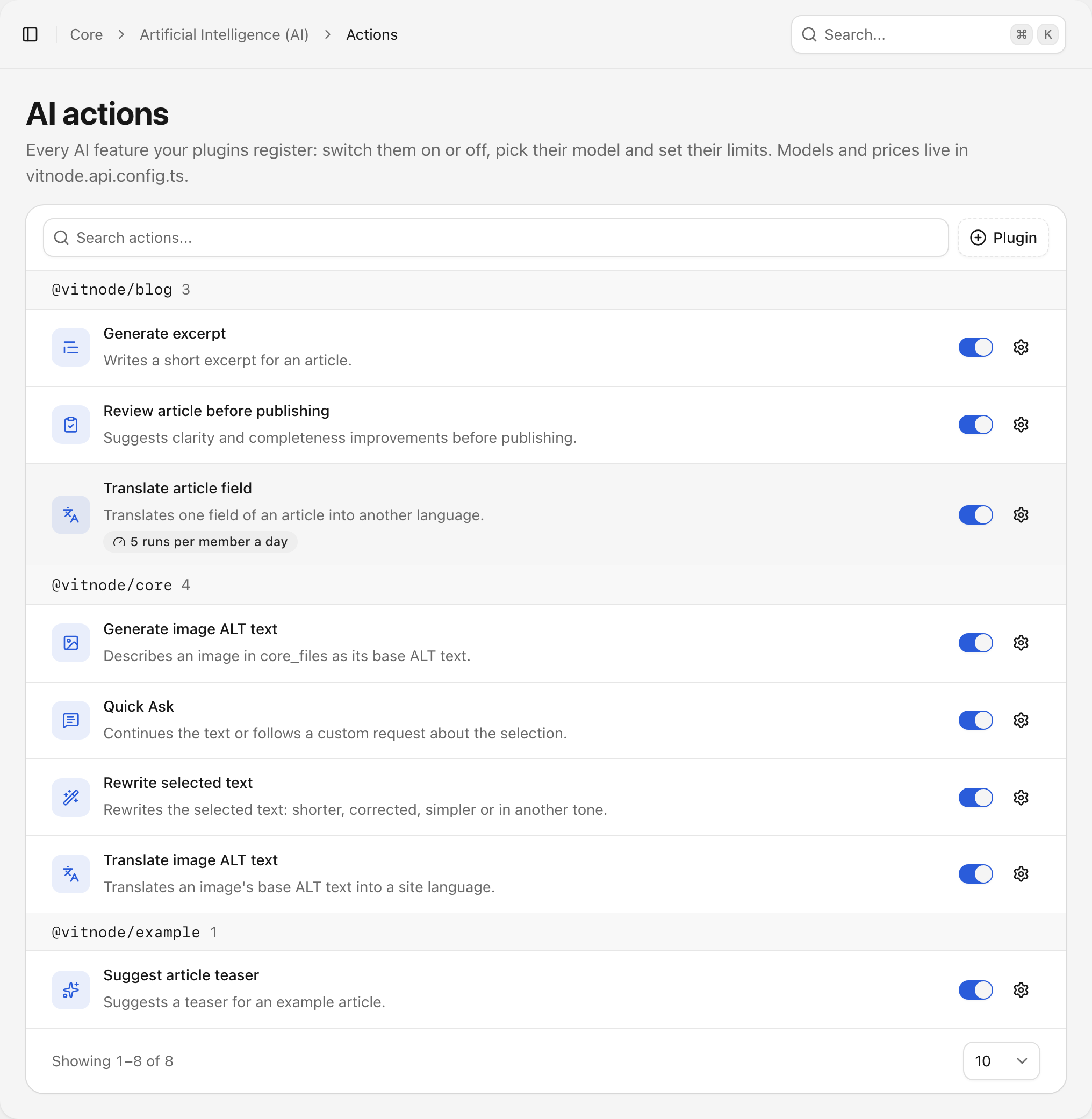
The switch on each row turns the action on or off straight away. A disabled action refuses to run for anyone, and its row fades.
The Configure button (the gear) opens a sheet with the rest:
- Enabled: the same switch as on the row.
- Model and Fallback model: only models with every capability the action needs are listed. Site default is the first compatible model.
- Editorial instructions: up to 2,000 characters appended to the prompt, e.g. house style.
- Limits: runs per member per day, max input characters, max output tokens, retries, steps and timeout. Each one can fall back to the plugin's default.
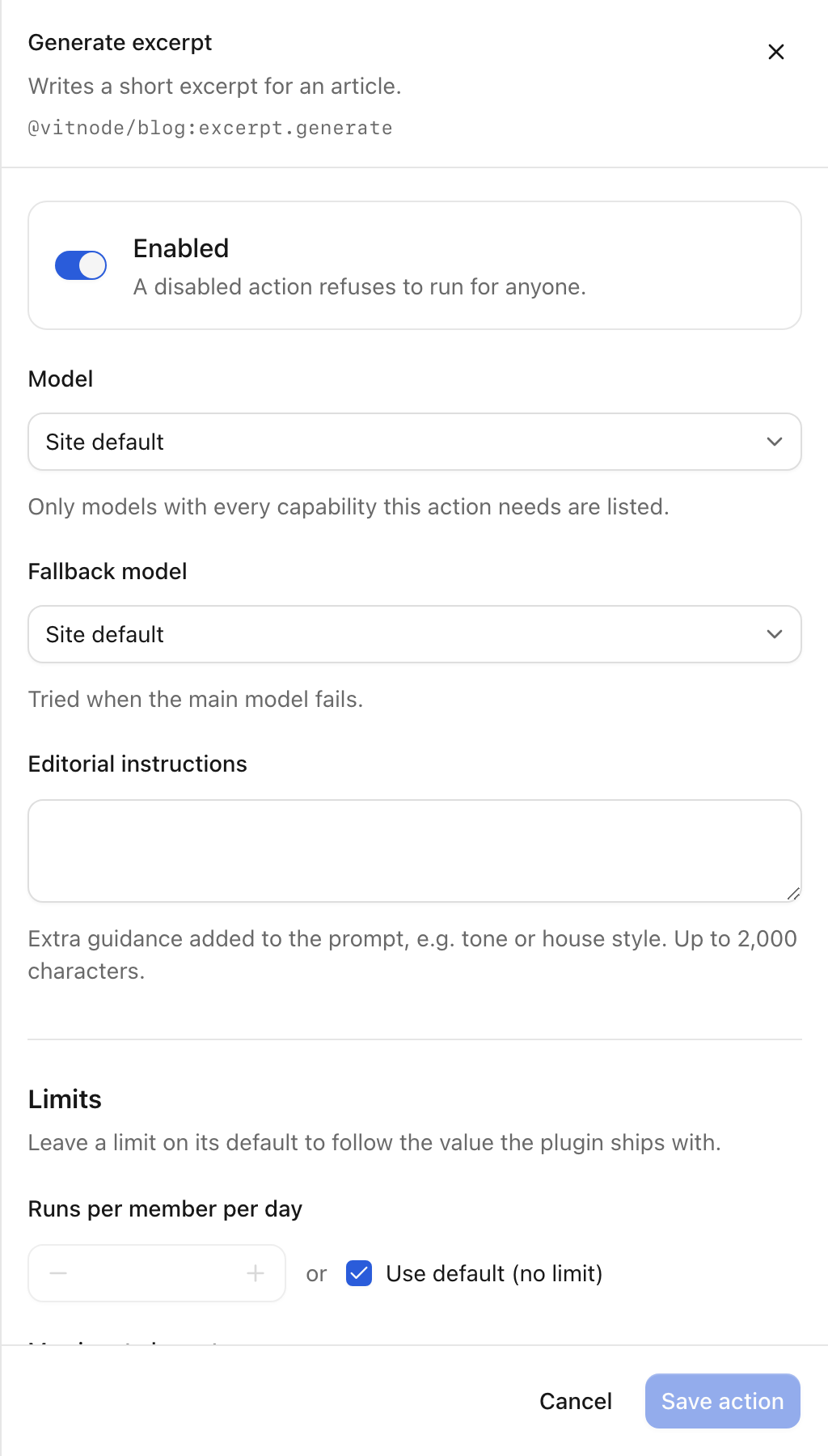
Press Save action to apply the changes from the next run. An action marked No compatible model, so it can't run needs a model with the right capabilities in vitnode.api.config.ts first.
AI access
A member's run must pass four separate controls. They answer different questions, so check the right one when somebody is refused:
| Control | Question | Where | Error when refused |
|---|---|---|---|
| Permission | May this role use this feature at all? | Role form → Artificial intelligence (AI) tab | AI_UNAUTHORIZED |
| Monthly points | How much may this member spend this month? | Role form → Artificial intelligence (AI) tab, or a user exception | AI_USER_LIMIT_REACHED |
| Daily count | How often may this feature run per day? | Role form → Artificial intelligence (AI) tab, or the action limit | AI_DAILY_LIMIT_REACHED |
| Site spending | Can the whole site still afford it? | Settings → Monthly site budget | AI_BUDGET_EXHAUSTED |
The permission does not replace content access. An excerpt action still checks that the admin may edit the article.
Roles
Creating or editing a role in Users → Roles shows an Artificial intelligence (AI) tab to admins with ai:can_manage. It sets:
- Allowance: monthly points, Unlimited points, or the site default.
- Features: one row per AI permission, showing the icon, title and description of every action that uses it. Pick Default, Allow or Deny; Allow opens an optional daily limit in the same row. Icons turn grey when the role can't use the feature.
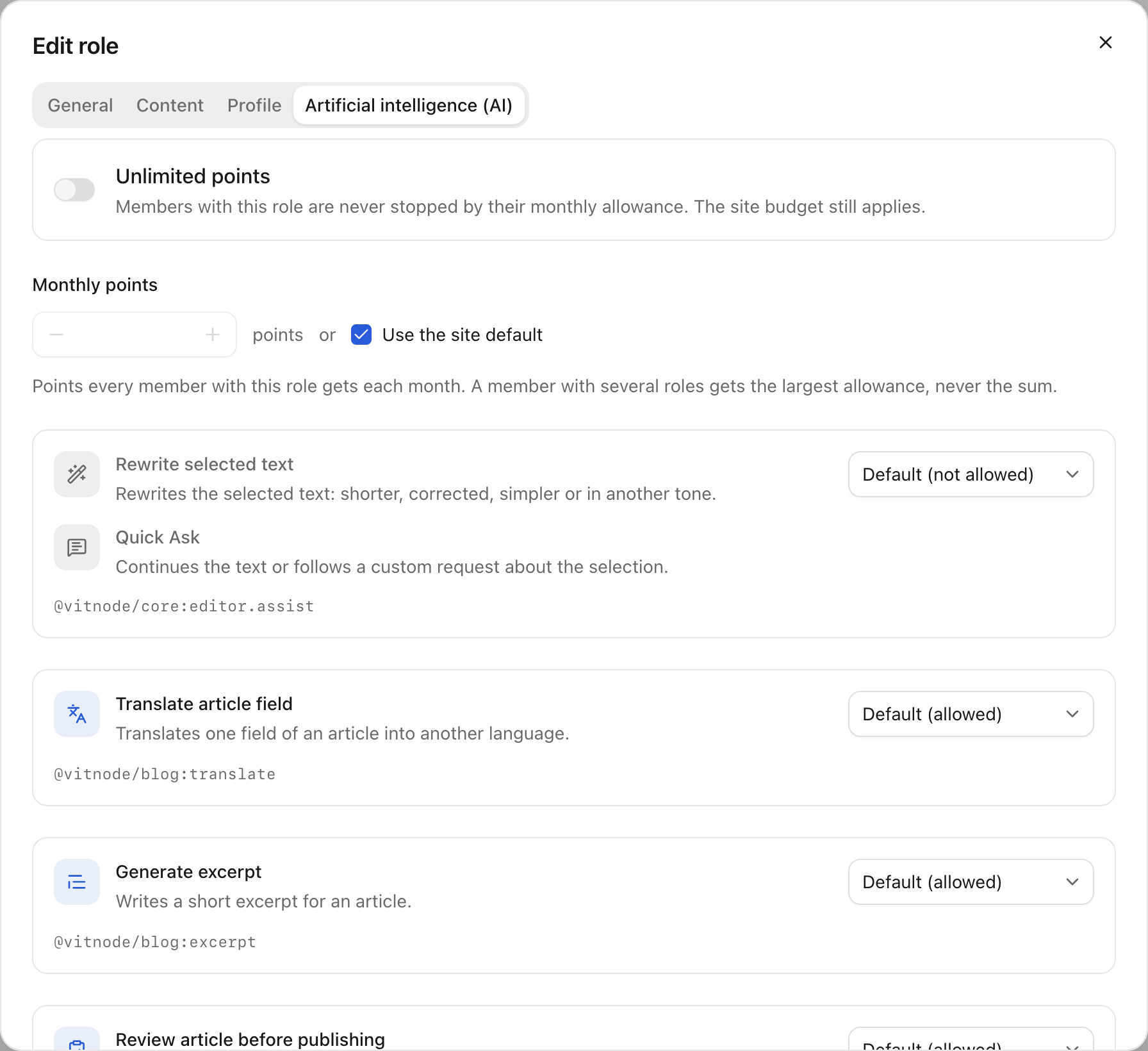
The AI access is saved together with the role, right after it.
A member with several roles gets the largest allowance (never the sum), the broadest permissions and the largest daily limit. Root roles always have access and no point cap, but the site budget still applies to them.
User exceptions
The AI access card on a member's AdminCP page (Users → a member) gives them their own rule, ahead of their roles: Block AI features, Unlimited points, or a personal monthly allowance. It replaces what their roles give until you remove it.
AI logs
Debug Panel → AI logs (/admin/core/debug/ai) lists every run with its action, status, origin (Members or Background jobs), model, cost and points. Filter by status, origin, action or model. Details shows:
- tokens in and out, cost, cost source and what was charged or reserved;
- every provider call, with retries and fallbacks listed as separate calls;
- cost corrections made by reconciliation;
- whether an editor accepted the suggestion (tracking only, never billing).
The AI logs record what a run took and what it cost. It never keeps the prompt, the input text or the generated text. The same is true on the member's page.
Run statuses: reserved, running, succeeded, failed, canceled and uncertain (the process died mid-call; the maintenance cron settles it). The ai-maintenance cron prunes history older than Keep history for.
Overview
Artificial Intelligence (AI) → Overview answers two questions: will we stay inside the budget? and where does the money go?
- Date range (top right): This month (the default), Last month, the last 7, 30 or 90 days, or any range picked on the calendar. Every number below follows it, and each is compared with the range before it: this month so far with the same days of last month, a whole month with the month before, anything else with the same number of days just before it.
- Budget: what the month has charged to the budget and the share of the limit used, with a mark where an even pace would be today. The bar turns amber at 80% of the limit (or when the forecast goes over it) and red at 90%. The arrows next to the month's name step through earlier months.
- For this month you get a forecast: what is already charged, plus the selected range's daily average for every day left. Pick Last 7 days to forecast from recent days, or Last 90 days for a steadier average. Going over turns the note amber.
- For an earlier month you get how it closed, and what a month would cost at the selected range's pace.
- Six numbers: spend, cost per run, runs, failure rate, tokens and the share of runs with a known cost, each with its change. Click one to chart it.
- Chart: for spend, the month's running total against the budget line, with last month dashed and the forecast to the month's end. For the other numbers, a running total (or a running average for rates) across the range, against the range before it.
- Where it goes: the picked number by action or by model, ranked, with a mark for the range before. A run whose model has no price shows Unknown, never
$0, and the page tells you how many runs that is.
The range and the budget month live in the URL (?range=7d, ?from=2026-09-12&to=2026-09-25, ?month=2026-09), so a view can be shared with another admin. Days follow the site's time zone, shown in the Settings sheet.
Member page: /settings/ai
Members who can use at least one AI feature get Settings → AI usage. Members without any feature, or on a site with AI switched off, don't see it in the settings menu, and opening the URL shows a not-found page. The page reads only the member's own data:
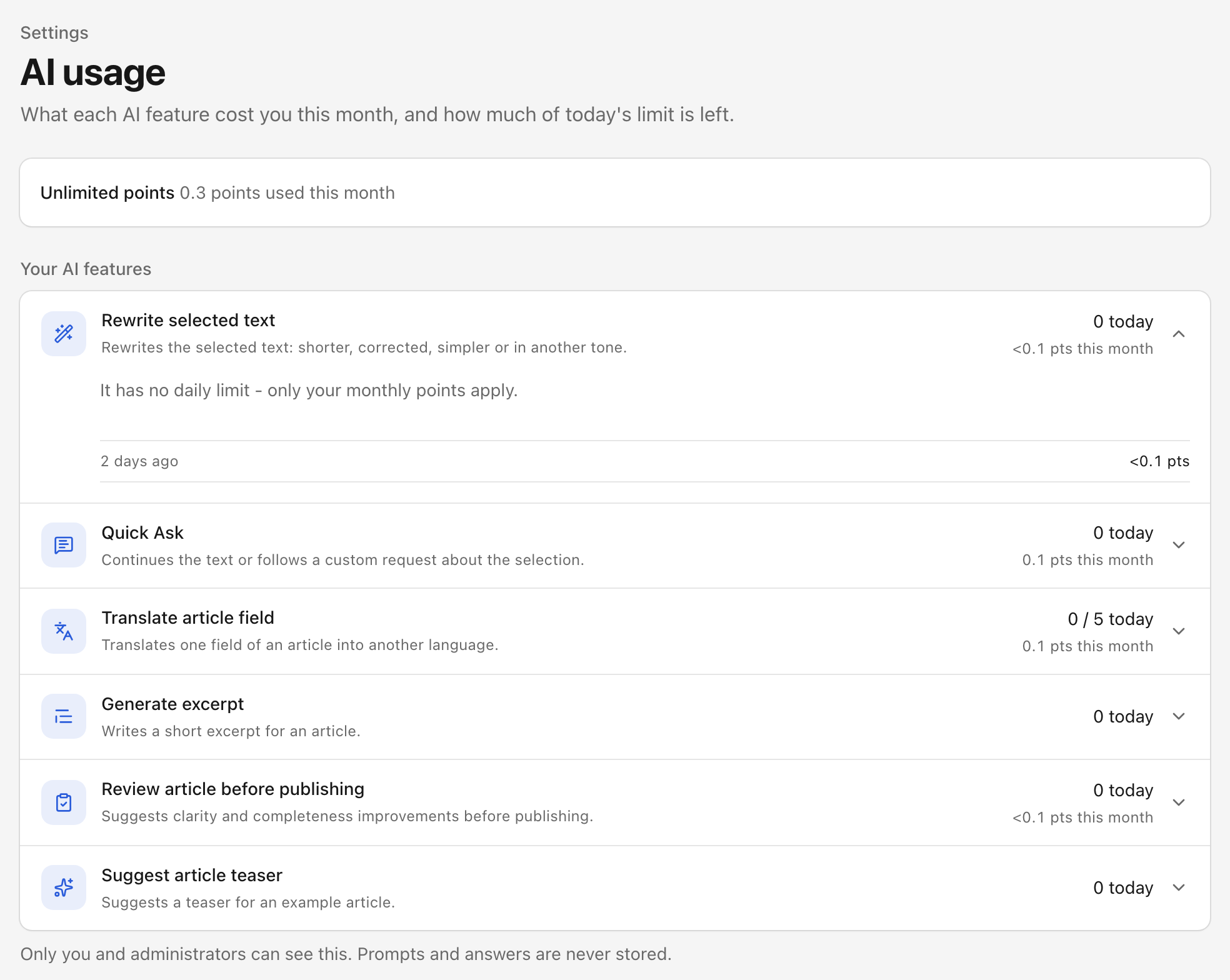
- Monthly points: points left, the share used and the renewal date. The bar turns amber at 80% used and red at 90%. Unused points do not roll over.
- Your AI features: one row per feature they may use, with today's runs against its daily limit and the points it cost this month. Opening a row loads that feature's latest runs with their status and points. Prompts and generated text are never stored.
The same points bar sits in its own AI points group at the bottom of Settings → Overview, with a link to the full page.
A notice under the points bar explains why AI may not be working, checked in this order:
| Notice | When |
|---|---|
| AI features are paused | The site budget is used up. The message says it is not the member's allowance. |
| You've used all your points | The member's allowance is used up. Shows the reset date. |
| Over 80% used | Used plus reserved points reached 80% of the allowance. |
API routes
Every screen is backed by an API route under @vitnode/core. Use them with fetcher, e.g. fetcher({ plugin: '@vitnode/core', method: 'get', module: 'admin/ai', path: '/overview' }).
| Route | Staff permission | Purpose |
|---|---|---|
GET /admin/ai/overview | ai:can_view | Overview for range or from/to, budget month |
GET /admin/ai/settings, PUT …/settings | view / manage | Site-wide settings |
GET /admin/ai/models | ai:can_view | Configured models (read only) |
GET /admin/ai/actions, PUT …/actions | view / manage | Action list and per-action settings |
GET /admin/ai/access/roles?roleId= | ai:can_view | AI permissions and one role's access |
PUT /admin/ai/access/roles | ai:can_manage | A role's allowance and permissions |
GET /admin/ai/access/users/{userId} | ai:can_view | One member's exception |
PUT, DELETE /admin/ai/access/users | ai:can_manage | A user exception |
GET /admin/ai/history, GET …/history/{id} | ai:can_view | Runs and one run's details |
GET /ai/usage | signed in | The member's own allowance, notices and features |
GET /ai/history?action=&limit= | signed in | The member's own runs, optionally for one feature |
Custom UI and Streaming list the routes that run actions (/admin/ai/assist*, /ai/run, /ai/stream, /ai/estimate, /ai/available and the feedback routes). Translations covers /admin/ai/translation-sources.