Install the Blog Plugin
Install @vitnode/blog, enable its API and TanStack Start integration, publish your first article in AdminCP and read it on the /blog page.
@vitnode/blog is the Content Engine reference plugin. It brings articles,
categories, editorial screens, revisions, a public /blog index, article
pages and search indexing, without making your host app impersonate a blog
plugin.
Install the package
bun add @vitnode/blog@canaryEnable the API plugin
For a Single App, edit apps/web/src/vitnode.api.config.ts; a split deployment
uses the same change in apps/api/src/vitnode.api.config.ts.
import { blogApiPlugin } from '@vitnode/blog/config.api'

export const vitNodeApiConfig = buildApiConfig({
  plugins: [
    blogApiPlugin(),
  ],
})
Enable the web plugin
One line, and it brings the blog's pages, its AdminCP screens and its
translations with it - your build reads the factory and writes the loaders into
src/package-messages.gen.ts for you:
import { blogPlugin } from '@vitnode/blog/config'

export const vitNodeConfig = buildConfig({
  plugins: [
    blogPlugin(),
  ],
})
Migrate, run, and publish
bun run db:migrate
bun dev
In AdminCP, create a category at Blog → Categories, then publish an article at Blog → Articles. A category's Friendly URL is filled in from its name in each language when you leave it empty, like an article's. The plugin owns the editorial work so the host can stay boringly reliable.
Read the blog at /blog
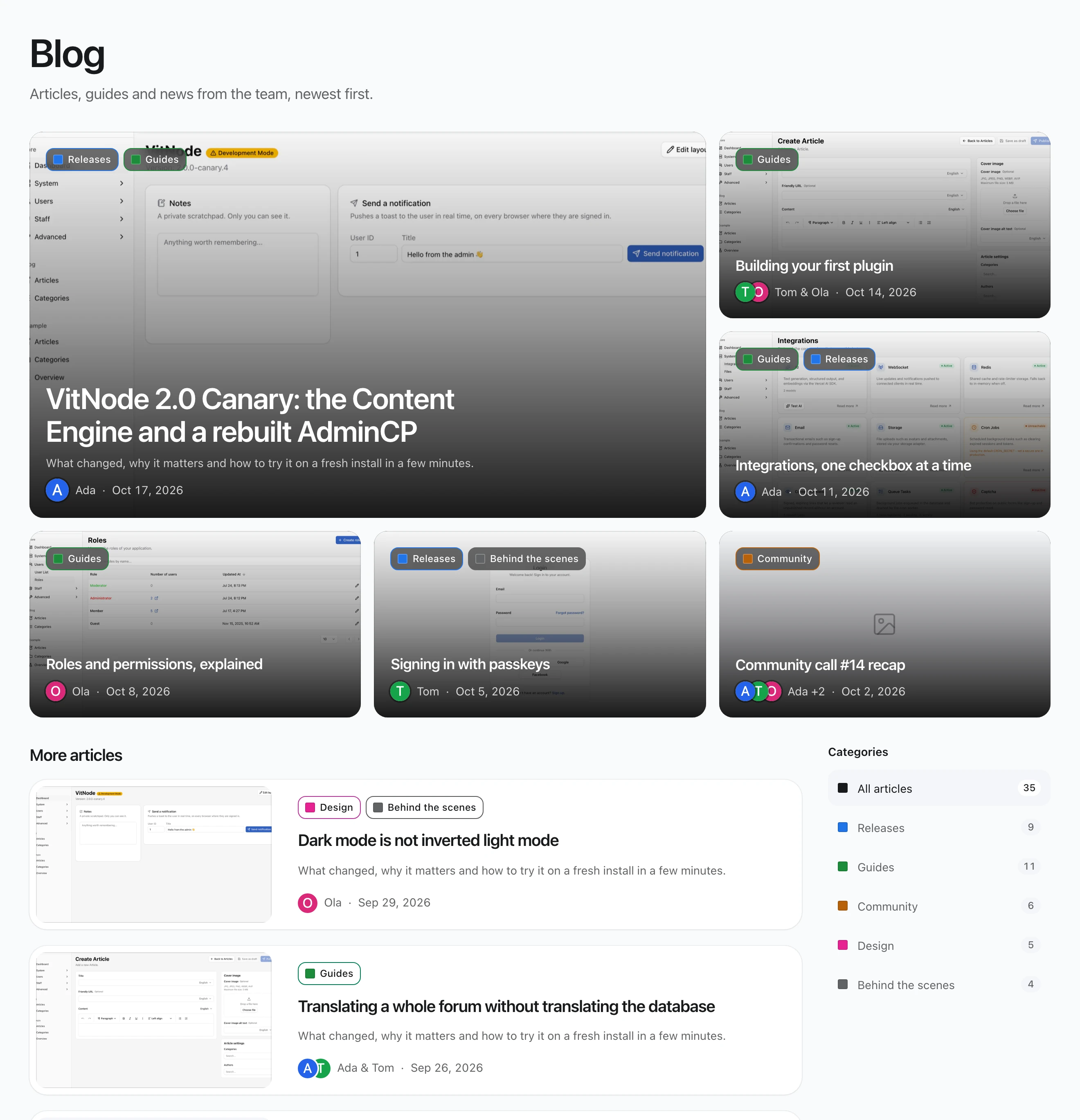
Installing the plugin adds /blog: every published article, newest first, 12 to
a page. Drafts, articles scheduled for later and hidden articles never appear.
- The first page opens with the six newest articles as image tiles: one large story, two beside it and three below. Each tile shows the article's categories, title, authors and date on top of its cover.
- The other articles follow as cards with the cover, up to three categories,
the title, the authors with their avatars and the date. The whole card opens the article at
/blog/article/:slug. - A sidebar lists every category that has articles, with how many each holds.
Each one opens the category's own page at
/blog/category/:slug, with its articles as cards. On phones the list turns into a row of chips. - Moving between pages animates with view transitions: an article's cover and title grow into the article page, and the category highlight slides to the category you picked. Visitors who prefer reduced motion get no animation.
Every view has its own address, so a refresh, a shared link and the back button all show the same view:
| URL | What it shows |
|---|---|
/blog | Every article, with the image tiles on the first page |
/blog?page=2 | A later page of every article |
/blog/category/guides | One category's articles, using its friendly URL |
/blog/category/guides?page=2 | A later page of that category |
/blog/article/building-a-plugin | One article |
Category and article slugs are per language: a Polish reader gets each
category's Polish friendly URL, and a category link in another language
redirects to it. Older links still work: /blog/:slug and /blog?category=3
redirect permanently to the new addresses. Any other query parameter is
ignored. There is no search box on /blog; readers find articles through the
site search, which indexes every published article.
The page follows the reader's language. In Polish it lists the Polish translation of each article, or the English one where none is published yet, and category names fall back the same way. "No articles yet" means nothing is published; "Nothing in this category yet" means the picked category has no articles in that language, and offers See all articles.
The first page of /blog and of every category is indexed by search engines,
with a canonical link and hreflang alternates that use each language's own
slug. Later pages get noindex, follow, so crawlers still reach every
article. Add /blog to your app's /sitemap.xml
next to the article entries; the
sitemap route lists articles, not the
index.
Read an article
An article page puts everything a reader asks first at the top, centered: a link back to the articles, the categories, the title, the authors and a line with the publish date, when it was last edited and how long it takes to read. The "Edited" note only shows up when the article changed more than an hour after it went live, so a quick fix right after publishing stays quiet.
The cover and the text share one centered column. When the article has
headings, an On this page list sits in the right margin and follows you as
you scroll, highlighting every section you are looking at. On phones it folds
into a box above the cover. Headings get their own link anchors, so you can
share /blog/article/building-a-plugin#why-plugins.
Categories and article counts in your own pages
The sidebar and the category tags come from a small public route that returns each category's id, name and friendly URL in the requested language, its friendly URL in every language, its colour and article count, plus the total for All articles:
curl "http://localhost:3000/api/@vitnode/blog/categories?locale=pl"{
"items": [
{
"articleCount": 4,
"color": "hsl(215, 81%, 52%)",
"id": 1,
"name": "Poradniki",
"slug": "poradniki",
"slugs": { "en": "guides", "pl": "poradniki" }
}
],
"total": 4
}A count only includes articles a reader can open in that language, the same
ones /blog lists. Names stay cached until a category changes, and counts until
an article is published, edited, hidden or deleted. To put a blog list on
another page with your own layout, see
Add a list to another page.
Article authors
Every article carries its authors under authorId, in the order the article
lists them, on both the list and the article route. The blog opts the field into
publicApi.people, so each author
is a small public profile, never a raw user row:
curl "http://localhost:3000/api/@vitnode/blog/content/blog?locale=en&first=1"{
"edges": [
{
"authorId": [
{
"avatarColor": "a8295c",
"avatarUrl": null,
"id": 1,
"name": "Ada",
"nameCode": "ada",
"role": { "color": null, "prefix": null }
}
],
"id": 4,
"title": "Building a plugin"
}
]
}The response is trimmed here. A deleted account simply drops out of the list.
Write and translate articles
The article editor reads top to bottom like the published article: the cover image and its alt text, then the title, slug and content. The checks before publishing live in the SEO sheet, so the text gets the whole width.
Check the article before you publish
Press SEO in the header to open the Ready to publish sheet. The badge on the button counts what is still left, so you know when it needs a look. The sheet checks what a published article usually needs:
| Check | Passes when |
|---|---|
| Title fits search results | Every started language has a title of 60 characters or less |
| Cover image | A cover image is set |
| URL | The language you edit has a friendly URL |
| Cover alt text in every language | Every started language describes the cover |
| Translations complete | Every language has a title, friendly URL and content |
| Translations up to date | No translation is older than the default language |
The title and alt text fields show a live counter against the recommended length: 60 and 125 characters. They are recommendations, not limits, so you can still save a longer title.
Each row is green when it is done and says what is missing when it is not, and the bar on top counts how many are ready. You can fix most rows right there: press Edit under the cover to jump to the alt text, or Open a language that is missing a translation.
Publish or unpublish
The header shows whether the article is a Draft or Published (hover it to see when it went live). To change that, open the arrow next to Save changes and pick Publish or Unpublish. It asks for confirmation first, because readers see the change immediately. Hide and Unhide live in the same menu.
Hide or duplicate an article
The More actions menu of an article in the list has Hide and Duplicate. Hiding takes a published article off the site, search and the sitemap without unpublishing it, and Unhide brings it back with the same URL and date. It needs the Hide and unhide articles permission. Duplicating makes a draft copy with every translation, such as "Hello world (Copy)". See Hide content and Duplicate content.
Translate side by side
Pick a language from Translate. Each translated field then shows the default language on the left, read-only, and the language you translate into on the right. Your shared fields, such as categories and authors, stay in one place.
A translation is marked outdated when the default language was saved after it. Generate from title builds the friendly URL from the translated title.
Use AI helpers
With AI configured, the editor adds:
- Translate on each field, and Translate missing fields for a whole language. Content keeps its formatting.
- AI review in the header, which opens a sheet with suggestions about clarity, completeness, structure and tone. When a suggestion is about the wording, Show fix shows the current text next to a rewrite, and Apply puts the rewrite into the article. Dismiss hides a suggestion you do not agree with. The review never blocks publishing.
The buttons appear only when the API has at least one model in ai.models.
The routes behind them require the can_edit permission on articles. See
AI to configure a model.
AI never saves for you. Read the suggestion, then press Save changes. While others are editing the article, a translated body goes into the shared editor as one change, so everyone sees it and you can undo it.
Write together
Several people can work on one article at once. The header shows who else is in it, and a colored outline with a name tag shows who is editing which field. The title, slug and other plain fields are edited by one person at a time; the article body is shared, with everyone's cursor visible. Your changes are autosaved to a draft until someone presses Save changes. See Live editing and autosave for how it works and what it needs on your server.
Upgrade an existing blog
Articles no longer have an Excerpt field. The migration drops the column with every excerpt in it, so copy any you want to keep before you run it. Search results and the meta description now use the start of the article content. The article content is now stored as rich text JSON instead of HTML; the migration keeps the words of existing articles as one paragraph, so re-check their formatting.
Articles moved from /blog/:slug to /blog/article/:slug, and categories got
a localized Friendly URL. The migration gives every existing category one
made from its name and id, such as guides-3; rename it in AdminCP if you want
a shorter one. Old article links redirect, but search results store their URL,
so rebuild the blog.post collection in AdminCP → Debug Panel → Search
afterwards. If you map the article route in routePaths, rename the key to
'/blog/article/:slug'.
Run your migrations after you upgrade @vitnode/blog:
bun run db:migrateDeliver it from a plugin
Build the public article page in a plugin too, then use the Content Engine delivery guide for loaders and SEO. That keeps the data model and its public URL together.
Build your first plugin
Create the plugin that will own your site’s public blog route.
Content delivery and SEO
Add plugin routes, redirects, canonical metadata, and sitemaps.
Public lists
Build a list page like /blog for your own content type.
Admin Control Panel
Extend the staff experience with pages, navigation, and widgets.