Widgets

Visual Edit Mode

Turn a public page into an editing surface without changing a single ContentZone - and without shipping a byte of the editor to the people who are only reading.

Visual Edit Mode is the part where somebody finally gets to move things around.

A page renders its content zones the way it always has. An authorized moderator opens the user menu in the header, clicks Edit widgets, and the same page - same layout, same fonts, same widgets - grows an outline around each zone, a drag handle on each widget and a sidebar that slides in down the right-hand side while the whole site moves over to make room for it. They rearrange, edit in the sidebar, save, and leave. Nobody was sent to a separate admin screen to guess what the result would look like.

public page
   ↓ Edit widgets        ← the user menu, on whatever page you are on
the same page, editable
   ↓ Save
public page again

ContentZone did not change

This is the promise the Content Zones page made, and it is worth being specific about how it was kept.

<ContentZone
  id="before-profile"
  blocks={content.beforeProfile}
  registry={blocksRegistry}
/>

That is the zone in view mode. It is also the zone in edit mode. There is no EditableContentZone, no editable prop, no second component to migrate to - and nothing stored today needs rewriting.

Internally ContentZone asks one question before it renders: is an edit runtime present? In view mode the answer is null and the Stage 2 path runs untouched, including the return null for an empty zone. In edit mode the runtime answers, and the zone hands it everything it knows - id, blocks, registry, allowlist, wrapper - and lets it render the editing surface instead.

A visitor pays one useContext that answers null. That is the entire cost of a feature they will never see.

Turning it on

There are two ways to turn on visual editing, depending on how your page manages layouts.

For pages that declare their zones with defineEditablePage, wrap your zones in <EditablePage> from @vitnode/core/widgets/page. It automatically resolves zone data, handles defaults, rebases canonical server responses, and mounts the editor runtime when edit mode is active.

plugins/example/src/pages/zones-page.tsx
import { EditablePage } from '@vitnode/core/widgets/page'
import { ContentZone } from '@vitnode/core/widgets/zone'
import { createContentEditorAdapter } from '@vitnode/core/content/editor'

const SettingsPage = ({ canEdit, layout, search }: SettingsPageProps) => {
  const adapter = useMemo(
    () =>
      createContentEditorAdapter({
        page: settingsPage,
        save: async (payload) => {
          await savePageLayout(payload)
        },
      }),
    [],
  )

  return (
    <EditablePage
      adapter={adapter}
      canEdit={canEdit}
      layout={layout}
      openEditing={search.edit === true}
      page={settingsPage}
    >
      <ContentZone id="before-profile" />
      <ProfileForm />
      <ContentZone id="after-profile" />
    </EditablePage>
  )
}

No button and no editing state: <EditablePage> tells the site shell that an editable page this visitor may edit is on screen, and the shell puts Edit widgets in the user menu. openEditing is only for arriving with edit mode already asked for, which is what a ?edit=true link does.

See Editable Pages for the full breakdown of defineEditablePage, defaults, and zone permissions.

2. Low-level: <ContentEditorRuntime>

For custom hosts that manage their own raw zone persistence and do not declare an editable page, wrap your zones in ContentEditorRuntime from @vitnode/core/widgets/edit:

import { ContentEditorRuntime } from '@vitnode/core/widgets/edit'

;<ContentEditorRuntime
  adapter={adapter}
  enabled={editing}
  onExit={() => {
    setEditing(false)
  }}
>
  <ContentZone id="before-profile" blocks={content.beforeProfile} />
  <ProfileForm />
  <ContentZone id="after-profile" blocks={content.afterProfile} />
</ContentEditorRuntime>

This one takes enabled from you, so a custom host that is not an editable page owns edit mode itself - and has to draw its own way in, because the user menu only offers one for a declared page.

Prop
enabledrequiredfalse renders the children and nothing else. true loads the editor.
childrenrequiredThe page. Every ContentZone inside it becomes editable.
adapteroptionalWhere Save sends its payload. Without one, Save says so and does nothing.
onExitoptionalCalled by Finish editing, after the unsaved-changes prompt.

Who gets the button, and where it is

The entry lives in the user menu in the site header, next to My Profile and Settings. That is one place for a site-wide action, it is on every page, and it means a page that happens to be editable does not have to find a corner of its own header to put a button in - which is how three pages end up with it in three different places.

It draws itself from what the page publishes, so there is nothing to render and nothing to wire:

<EditablePage canEdit …>   →   "this page is editable, and this visitor may"
site shell                  →   Edit widgets in the user menu
                            →   the room the sidebar needs, from the whole page

canEdit is still yours. VitNode does not decide who may edit a page, because VitNode does not know what your pages are - a plugin's settings screen, a marketing page and a user profile have three different answers. On editable pages it is usually checked against the moderator permission the page declares (e.g. widgets: ["can_edit"]); pass false and the entry is not in the menu, the runtime is not mounted, and the editor chunk is not requested.

A hidden button has never stopped anybody

/example/zones reads the visitor's effective moderator permissions in its loader and only then says canEdit. That is a signal, not the boundary: the save endpoint behind the adapter asserts the same permission again and answers 403 without it. A URL like ?edit=true is the same kind of thing - it may request edit mode, and it must never grant it. See Editable Pages.

The lazy-loading guarantee

The editor is not small. Drag and drop, a block catalogue, a form runtime and a properties panel add up, and every one of them is useless to a visitor reading the page.

So none of it is in the public page's bundle. @vitnode/core/widgets/edit reaches React and nothing else; the only path from it to the editor is a dynamic import() behind React.lazy:

packages/vitnode/src/blocks/edit.tsx
const EditorRoot = lazy(async () => await import('../editor/root'))

The chunk is requested when enabled first flips to true - that is, on the first click of Edit widgets - and never before.

view mode      blocks/zone.tsx      → react
edit seam      blocks/edit.tsx      → react
first click    editor/root.tsx      → @dnd-kit, @tanstack/react-form, sonner, …

This is enforced, not merely intended. packages/vitnode/src/editor/boundaries.test.ts walks the real module graph and fails the build if the arrow ever points the wrong way:

  • blocks/zone.tsx and blocks/edit.tsx eagerly reach react and nothing else;
  • neither reaches @dnd-kit/*, @tanstack/react-form, sonner, @tanstack/react-query, @tanstack/react-router, cmdk or zod;
  • blocks/edit.tsx does reach @dnd-kit/core once dynamic imports are followed, which is the proof that the only path is a dynamic one;
  • nothing under src/editor/** reaches views/admin/**, or any database or server package;
  • the sidebar is the one panel editor/root.tsx mounts, editor/toolbar/ and editor/block-picker/dialog.tsx do not exist, and the editor no longer reaches cmdk at all - a revert fails the test instead of quietly shipping a modal again.

Turning that static import back on would be a one-line change and a silently 200 kB heavier home page. The test is the thing that notices.

Turning it on does not restart your page

Lazy loading is easy to get right in a way that quietly breaks the page underneath. The obvious shape is this one:

if (!enabled) return <>{children}</>

return (
  <Suspense fallback={children}>
    <EditorRoot>{children}</EditorRoot>
  </Suspense>
)

It looks like a toggle. It is a remount. React reconciles by position in the element tree, so the moment a wrapper appears above children, everything in them is torn down and built again: useState resets, uncontrolled inputs empty themselves, focus is lost, a playing video restarts. Reusing the identical children element object does not help - position is what counts, and <Suspense> alone is enough to do it.

That is not acceptable on a page somebody is already using. So the runtime is built the other way round:

site shell <div>                ← above the header, padding is the only thing on it
  ContentEditorRuntime          ← public, always mounted
    ContentEditContext.Provider ← always mounted, value is null in view mode
      {children}                ← one fixed slot, never moves
      {enabled && <Suspense><EditorRoot/></Suspense>}   ← a SIBLING

The editor is never an ancestor of your page. Turning edit mode on changes one context value and mounts a sibling; nothing above children changes, so nothing in them remounts.

The site shell above it all is a plain block <div> at the document root, and it stays one whether or not anybody is editing. That is deliberate rather than incidental: padding only transitions between two values of an element that already has a box, so a wrapper that appeared when editing started - or went back to display: contents when it ended - would snap to its new width instead of gliding there, in whichever direction it was going. It carries the transition and the two custom properties and nothing else.

Then how do zones become editable?

@dnd-kit needs its DndContext above every droppable, and the zones are inside your page. Since the editor may not wrap your page, the zones come out to it instead.

In edit mode ContentZone renders a bare host element - your as, your className, the usual data-vitnode-zone attributes - and registers that DOM node with the runtime. The editor, which owns the DndContext, renders the real EditableZone into each registered node with createPortal:

page             editor
────             ──────
<aside ref>  ←   createPortal(<EditableZone/>, node)
                   inside <DndContext>, inside the editor's own providers

The markup lands where you put the zone; the React tree it belongs to is the editor's. One consequence is worth knowing: a block rendered in a zone reads React context from the editor, not from inside your page subtree. Context from your app root reaches it as usual - the router, the theme, the intl provider - but a provider you render between your page and a ContentZone will not. No built-in or plugin block relies on that today, and if yours does, pass the value through the block's own data instead.

The interaction model

A block is a real component. It contains links, buttons, forms, embedded video - things that do something when you click them. In edit mode, clicking one has to mean select this block, not follow this link.

VitNode solves that with three layers on every block, and one escape hatch:

inert containerThe block's own component renders inside an inert element, so nothing in it can be clicked, focused or tabbed to.
Transparent overlayA full-size <button> above it. Clicking anywhere on the block selects it; screen readers get "Select the Hero block".
Floating actionsA drag handle, Duplicate and Delete appear on hover, on focus, and while selected.
Preview toggleRemoves all three. The block becomes the real thing again, exactly as a visitor sees it.

The alternative - asking every block author to make their component "editor-aware" - was never on the table. A block's component is public rendering code, it is written by plugin authors who have never read the editor's source, and it must not grow a second mode. inert does the whole job in one attribute, from the outside.

Preview is there because the illusion has to break sometimes. Does the video play? Does the accordion open? Is the call-to-action button the right size once it is actually hoverable? Toggle Preview, use the page like a visitor, toggle back.

Empty zones become visible

An empty zone renders nothing at all in view mode - no wrapper, no placeholder, no gap. That is deliberate, and it stays true.

In edit mode the same zone renders a dashed drop target with its id and an Add block button, because now somebody is looking for a place to put something.

view mode   before-footer   (nothing)
edit mode   before-footer   ┌ dashed box ┐
                                     │ + Add block │
                                     └────────────┘

Finish editing and it disappears again. A page with eight placement points and two filled ones costs two in public, and shows all eight to the person arranging them.

The editing sidebar

Everything the editor asks of you lives in one panel down the right-hand side: the block catalogue, the properties of whatever is selected, and the Preview / Discard / Save / Finish editing row at the bottom. There is no modal to open and dismiss, and no second panel competing for the same corner of the screen.

The whole site is padded, not covered - the header, the page and the footer all move over together, the way the AdminCP dashboard moves over for its widget panel. So the sidebar never sits on top of anything: not the zone you are arranging, and not the user menu you opened it from. Below md the same sidebar becomes a bottom sheet, because 360px of a phone is not a sidebar, and the padding moves underneath the site instead.

Both halves of that take 200ms and start on the same frame, in both directions: the page's edge and the sidebar's edge are the same number on every frame of it. Finish editing plays the whole thing backwards - the editing chrome goes at once, so the page is public again immediately, and the editor stays mounted just long enough for the sidebar to slide back off screen while the padding shrinks under it.

Which frame that is comes from the editor, not from the seam that loads it. On a first open the editor chunk and the sidebar's own messages take a moment to arrive, and a shell that started widening the moment edit mode was requested would slide the page over to make room for a sidebar that had not loaded yet - the page moving first and the panel catching up, once, on the first click only. So editor/root.tsx is what asks the shell for its room, and it cannot ask before it exists. Nothing moves until the sidebar is ready; then everything moves together.

One panel, three modes

Available WidgetsA search field, a Layout section holding the Area entry, and every block this location accepts, grouped by the namespace that provides it.
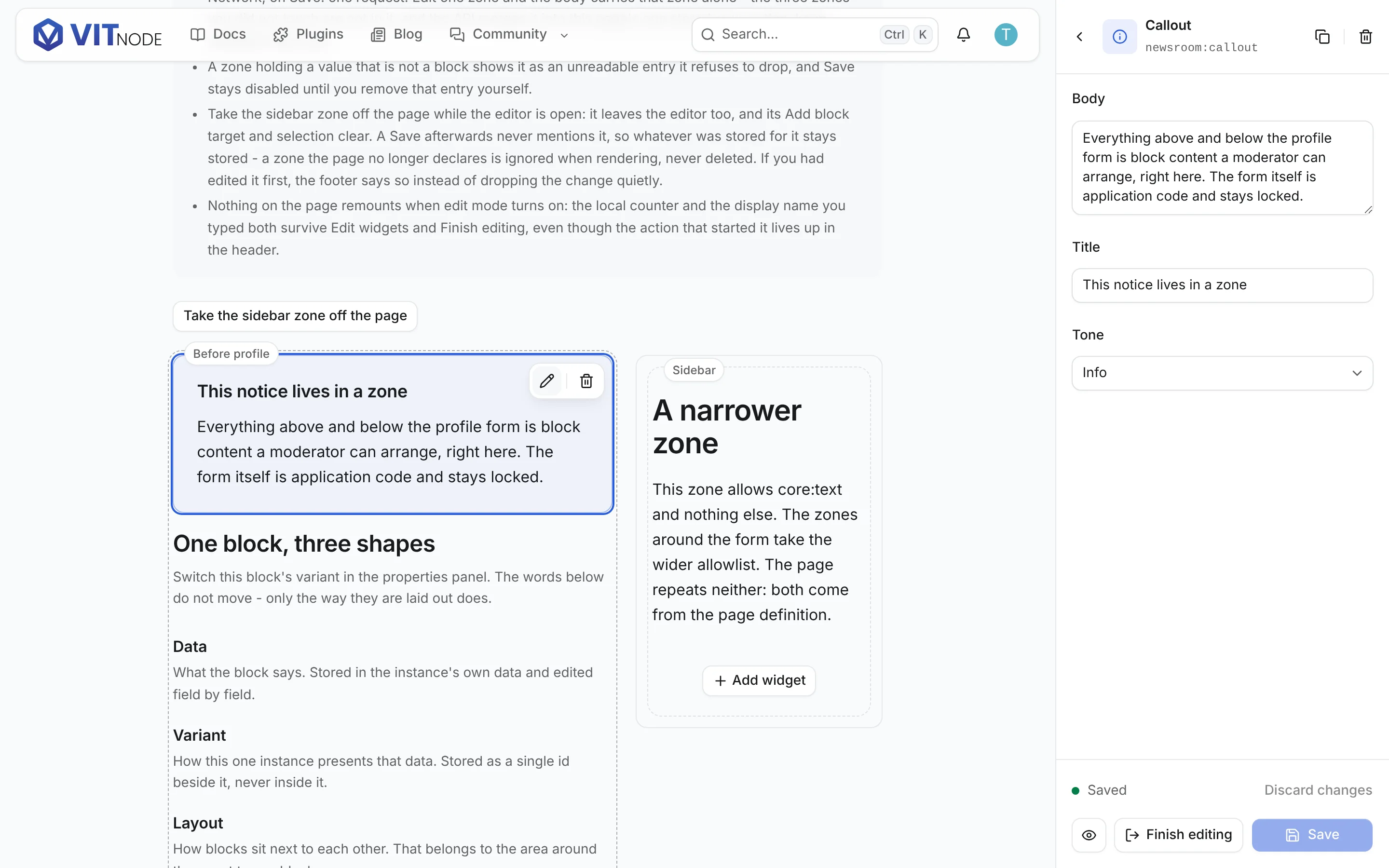
PropertiesThe selected block's variant picker and its fields, with Duplicate and Delete under them.
Area propertiesThe selected Area's Columns, Gap, Alignment and Distribution, with Duplicate, Ungroup and Delete area under them.

Selecting a block switches to Properties; selecting an Area switches to Area properties. The ← Available Widgets action at the top switches back from either and clears the selection, so the page stops ringing something you are no longer editing. Deleting the selection does the same thing on its own.

In Preview the sidebar collapses to a slim bar holding Back to editing and Finish editing. It never collapses to nothing - a preview you cannot leave is a trap - and the editor stays mounted behind it with every unsaved change intact.

Two ways to add a block

A catalogue entry is a drag source and a button, because those answer two different questions.

Drag itYou care where it goes. An insertion line shows the exact position while you are still holding it.
Click itYou do not, or you already said where. It goes to the targeted zone - or, with nothing targeted, the first zone that accepts it.

Add widget on a zone is what sets that target: the sidebar switches to Available Widgets, its header reads For: sidebar, and the zone stays lit until a block lands or you clear it. Add widget on an Area targets the Area instead, and the header says so - For: an area in after-profile - because naming the zone alone would be a lie about where the block is going.

The catalogue's own Layout section sits above the plugin groups and holds one entry: Area. It works exactly like a block entry: click it and an empty Area drops into the target, or drag it and it lands where the insertion line says. An Area is not a registered block and has no type, so what travels with the drag is the layout itself rather than a block id - and dropping one onto an Area is refused, because an Area cannot hold another Area. While an Area is the insertion target the Layout section disappears for the same reason.

Either gesture inserts the block, selects it and opens Properties in one step, so the next thing you do is fill it in.

The catalogue follows the target

allowedBlocks on a zone is what the catalogue offers. Not everything installed - everything allowed in that location.

<ContentZone
  id="sidebar"
  allowedBlocks={['core:text']}
  blocks={content.sidebar}
/>

Target that sidebar and the catalogue shows exactly one block. Clear the target and it shows the union of what the page's zones accept, because now any of them could be the destination. Same allowedBlocks value, same format as a blocks() field's allowed, now doing a third job.

A zone that allows nothing the installation provides says so, rather than offering an empty list.

The catalogue is not the write boundary

The allowlist on a zone describes a location. The one on the blocks() field enforces, on every create and update. The catalogue filtering by the zone's copy is a courtesy to the person editing - the field is what refuses a block that should never have been stored.

Drag and drop

Grab a block by its handle, or a catalogue entry anywhere on its card, and move it.

  • Reorder inside a zone: drop it above or below a sibling.
  • Move across zones: drop it into another zone, or onto one of that zone's blocks to land at that position.
  • Into an empty zone: drop it anywhere on the dashed placeholder.

Identity is the block instance id throughout - never an array index - so a block that crosses a zone keeps being the same block, with the same data, and the properties panel does not blink.

Before or after, never into a block

Dropping onto a block inserts before it or after it, decided by which half of it the pointer is over. That blue line is the answer, shown before you let go.

Nothing ever lands inside a block. Dropping into something is the Area's gesture: drag a block onto an Area and it becomes one of that Area's children, at the position the line shows. Drag a child back out and the Area keeps the rest. An Area dropped onto another Area is refused out loud - An area cannot hold another area - rather than silently landing beside it.

The keyboard does all of it too

Drag and drop that needs a mouse is drag and drop half the people cannot use, so the handle is a real button and every gesture has a key.

KeyWhat it does
TabReaches the drag handle of a block, like any other button.
SpacePicks the block up - and, the second time, drops it.
Moves it through the positions of its zone and on into the next zone.
EscPuts it back where it started.

The blue insertion line follows a keyboard drag exactly as it follows a pointer, because both are the same line: the editor asks its drop resolver where this block would land right now and draws the answer. Nothing is measured twice, so the line cannot disagree with the drop - and when the answer is "nowhere" (the zone refuses the block, or it already sits in that spot) there is no line, which is the honest thing to draw.

Screen readers get the same story in words. The editor localises dnd-kit's announcements through core.editor.dnd.*, so picking a block up, passing over a zone, being refused by one, and landing all read out with the block's name and the zone's id rather than the instance ids dnd-kit would otherwise spell aloud.

Picked up Callout.
Callout is over the after-profile zone, position 1 of 2.
The sidebar zone does not accept Callout.
Callout was dropped into the after-profile zone, position 1 of 2.

An incompatible target refuses

Drag an example:callout toward a zone that allows core:text only and the zone turns red and says it does not accept what you are dragging. Let go and nothing happens: a block stays where it was, a catalogue entry is simply not inserted.

The refusal is computed from the same isBlockAllowed the field and the catalogue use. One allowlist format, one function that evaluates it, three places that ask.

The properties panel

Select a block and its fields appear in the sidebar: text, textarea, number, boolean, enum, date-time, and groups of those - the field kinds a block may hold, as declared by defineBlock. The panel builds itself from the block definition, so a block that adds a field gets a control for it with no editor change at all.

Typing updates the block on the page as you type. There is no Apply button, and no preview pane to compare against, because the page is the preview.

A block that declares more than one variant gets a Variant picker above those fields. Picking one is a separate action from editing content: it keeps the instance's id, leaves data untouched, and does not reset a field you were halfway through. A block with one variant, or none, shows no picker - there is nothing to decide. A stored variant the block no longer offers is named in the panel, with the declared ones still offered beside it.

Area properties

Select an Area rather than one of its children and the same sidebar shows its four layout tokens - Columns, Gap, Alignment, Distribution - and re-lays the page out as you pick them. Under them: Duplicate area, Ungroup, and Delete area.

Ungroup and Delete are deliberately different buttons. Ungroup removes the container and leaves the blocks where the Area was; Delete takes them with it, and asks first, offering Ungroup, keep blocks in the same dialog. An Area holding nothing is deleted without the interrogation, because there is nothing to lose.

A block whose stored data does not match what its definition declares is not editable here - it is flagged on the page instead. Editing it would mean guessing which half is wrong, and guessing is how content gets quietly destroyed.

Content the editor cannot read

A zone is handed whatever is stored in it, and storage is older than any editor. A field can hold a value from a migration that never finished, from a plugin that wrote its own shape, or from a hand-edited row. The editor has to have an answer for that, and the answer is never delete it.

Every value a zone mounts with is sorted into one of two piles:

A block with bad data{ id, type, data } is intact and type is registered, but data does not match the fields. It stays a block: selectable, movable, deletable.
Something that is not a blockNo usable id, no type, an id already used by an earlier block in the same zone, or not an object at all. Nothing can be inferred from it, so nothing pretends to.

The first pile keeps working exactly as before - the block renders an InvalidBlock placeholder in place of its component, and its own shell keeps the drag handle, the duplicate and the delete button. Its data is bad; its identity is not.

The second pile never becomes a content node. It is kept beside them, not among them:

interface EditorZoneState {
  nodes: readonly ContentNode[]
  invalid: readonly { index: number; value: unknown }[]
  // …
}

A ContentNode is a block instance or an Area. An Area whose stored layout is not one the editor recognises, or which holds an Area of its own, lands in the second pile with everything else: shown as-is, never rewritten.

Nothing in the editor - no reducer action, no drop resolver, no block component - is ever handed one of those values. The zone shows them at the top, prints what each one looks like, and offers exactly one action per entry: Remove invalid entry.

One id per zone, not one id per page

An instance id has to be unique within its zone, and only within its zone. Two blocks sharing an id in one zone are indistinguishable there, so the second one goes in the opaque pile above. Two blocks sharing an id in two different zones are perfectly valid - the Content Engine validates a blocks field on its own, so nothing has ever promised otherwise, and a zone copied from one field into another would trip over any rule that did.

The editor therefore never identifies a block by its id alone. Selection, updates, deletion, duplication, moves and drag-and-drop all carry the zone:

interface EditorBlockRef {
  blockId: string
  zoneId: string
}

Drag-and-drop ids are built the same way - blockDraggableId({ zoneId, blockId }) percent-encodes both halves, so an id survives a round trip whatever characters it contains - and the drag payload carries the ref structurally rather than being parsed back out of a string. Selecting the copy of X in the sidebar zone can never edit the copy of X above the profile form.

Zone ids run the other way: a zone id is a place, so one page may only have one of each. Two <ContentZone>s claiming the same id while the editor is open is a developer error, not a merge.

Saving is blocked until you decide

While a zone still holds one, the whole editor refuses to save. The Save button is disabled, the sidebar footer explains why, and the adapter is not called even from Save and finish:

This zone contains invalid or legacy content that the Visual Editor cannot safely save. Resolve or explicitly remove the invalid content before saving.

That is deliberate, and it is the whole point of the pile. The save payload is a replacement array per zone - the editor hands over the blocks it understands, and the API stores exactly that. If a value the editor could not read were quietly left out of that array, editing an unrelated block in the same zone would delete it. Storing [A, malformed, B] and saving after a change to A would write [A2, B], and nobody would ever be told.

So removal is a decision you make, one entry at a time, and it is an edit like any other: Discard brings the entries back, and the page is dirty until you save.

Zones that leave the page

A page is allowed to change its mind. A tab, a feature flag, a route transition - any of them can stop rendering a ContentZone while edit mode is still on, and the editor has to have an answer that is not "persist it anyway".

When a zone's outlet unmounts it is removed from the document: out of zones, out of order, and therefore out of the next save payload entirely. A stale zone can never be written back. If it owned the selection, the selection clears and the sidebar returns to Available Widgets; if it was the target of Add widget, that target clears too.

What happens to unsaved work in it depends on whether there was any:

No unsaved changesIt is dropped silently. There was nothing to lose.
Unsaved changesIt is still dropped - the zone is gone, there is nowhere to put them back - but the sidebar footer names it, so it is never quiet.

That is the rule: an unmounted zone is out of the editable document, and losing work to it is reported rather than blocked. Blocking Save would trap you on a page whose zone no longer exists, and keeping the zone would mean writing content the page has stopped showing. Bring the zone back and it re-mounts from whatever the page hands it, with a fresh baseline.

What the host does with the gap is the host's call, and it matters. The save payload only carries zones the editor currently holds, so a save must write only what it names - never a whole field set composed on top of a fallback, which is how a zone that is off the page gets reset to something nobody chose. Editable Pages does exactly that: a zone the payload does not mention is not written, because each zone is its own row.

Saving is the host's job

The editor never fetches. Not once. The only way anything leaves it is the adapter you passed:

type VisualEditorSnapshot = Readonly<Record<string, readonly ContentNode[]>>

interface VisualEditorSaveInput {
  changedZoneIds: readonly string[]
  expectedZones: VisualEditorSnapshot
  zones: VisualEditorSnapshot
}

interface VisualEditorSaveResult {
  revision?: string
  zones?: VisualEditorSnapshot
}

interface VisualEditorAdapter {
  save: (
    input: VisualEditorSaveInput,
  ) => Promise<VisualEditorSaveResult | void> | VisualEditorSaveResult | void
}

zones holds every zone on the page keyed by its id; changedZoneIds names the ones that actually differ from what loaded; expectedZones holds, under the same keys, the baseline each zone started from - what was there before anybody dragged anything. Resolve and the editor marks itself clean and toasts. Throw or reject and it shows an error and keeps the changes, so nothing is lost to a failed request.

Send the baseline with the write and your API can answer the only question that matters when two people are arranging one page: is the thing I am replacing still the thing I was given? Zones are independent, so two moderators editing different zones both succeed, while a write to a zone that moved underneath somebody is refused instead of silently winning. Editable Pages does exactly that with a 409, and the editor says so - Somebody else saved this page first - while keeping every change you made.

The one rule the contract asks of you: save what you were handed. The editor rebases its idea of "unchanged" onto the snapshot it sent, not onto the state it is in when the promise resolves - so a word typed while the request was in flight is still unsaved afterwards, exactly as it should be.

zones is a complete picture of the page, not a patch: every zone the editor mounted is in it, emptied ones included. changedZoneIds names the ones that differ from what loaded - send those, and leave everything else alone at the other end. What you must not do is send a partial write and let the rest fall back to defaults.

You probably do not write this by hand

If the page declares its zones - and it usually should - createContentEditorAdapter builds this payload for you, from the same page definition the server reads. See Editable Pages. The rest of this section is the contract underneath it, and what to honour if you are writing an adapter for somewhere else.

const adapter = useMemo<VisualEditorAdapter>(
  () => ({
    save: async ({ changedZoneIds, expectedZones, zones }) => {
      await fetcher({
        plugin: '@vitnode/example',
        method: 'patch',
        module: 'pages',
        path: '/{id}/zones',
        args: {
          param: { id: page.id },
          json: { changedZoneIds, expectedZones, zones },
        },
      })
    },
  }),
  [page.id],
)

Answer with what you stored

save may resolve with nothing, and the editor is happy either way - but it is better if it does not. What the client sent and what the server kept are not always the same thing: an API is allowed to reorder, normalise, drop or rewrite what it is given. If the editor rebases onto its own input, it goes clean against a version that never existed, and the next save pushes the stale copy back.

So return what you stored:

const [zones, setZones] = useState(loaderData.zones)

const save = async (input: VisualEditorSaveInput) => {
  const payload = await writeChangedZones(input)

  setZones((current) => ({ ...current, ...payload.zones }))

  return { zones: payload.zones }
}

The editor then adopts that snapshot as its baseline and as what you are looking at - unless you edited during the request, in which case your edit stays and the zone remains dirty against the new baseline. Both halves matter: the first stops the stale re-send, the second is the save race rule that has always applied.

Updating the page's own state does the other half of the job: Finish editing shows the saved page immediately, with no reload, because the page underneath is already the new one.

This belongs to the page, not to the editor. The editor owns no layout state and never will: it is handed blocks, it hands back blocks, and the content's owner decides what is true.

Content that changes underneath the editor

The same problem arrives from the other direction. A router invalidation, a refetch, or the setZones above all re-render your page with different blocks, and a zone that is already mounted has to decide what to do with them.

The rule is the one you would write yourself:

Zone is cleanThe incoming content replaces both the working copy and the baseline. The zone adopts it and stays clean. A selection whose block is gone clears.
Zone is dirtyNothing about its content moves. Local edits win until Save or Discard resolves them. Only the allowlist and registry still refresh.

There is deliberately no merge. Two block arrays cannot be reconciled without inventing an answer, and inventing one is how an editor loses a paragraph somebody typed.

A failed load is not an empty page

Loading has a trap that is easy to walk into and expensive to walk out of. A route answers three different "there is nothing here" shapes, and they mean three different things:

200, an empty zoneNothing is in that zone. Editing and Save are fine.
200, nothing stored yetThe page has never been rearranged, so its declared defaults come back with updatedAt: null.
Anything non-2xxWhat is stored is unknown - an auth failure, a database error, a dropped connection.

Treating the third as the first is how a page overwrites content nobody meant to touch: the load fails, something plausible renders as if it had been read, somebody tidies a heading, presses Save, and the real stored layout is gone. The editor cannot catch this, because by then it was handed a perfectly valid set of blocks.

So the playground loader refuses:

if (!stored.ok) {
  throw new Error(`Reading this page's layout answered ${stored.status}…`)
}

The router's defaultErrorComponent takes it from there, and Edit widgets is never reached. The API holds the same line from the other side: a stored row that cannot be read throws rather than answering with an empty layout.

The second row is a success, and the distinction is the whole reason a page declares its defaults rather than inventing them at render time. Defaults that came from the declaration are content somebody shipped on purpose, so the first Save is entitled to replace them; defaults invented because a read failed are content nobody chose. Editable Pages has the longer version.

If throwing does not suit your route, return an explicit error state and disable editing on it. What you must not do is hand the editor a writable copy of something you did not actually read.

Save stays, Finish editing leaves

Two buttons, two different jobs, and it is worth being blunt about which is which.

SaveRuns the adapter and stays in edit mode. The footer goes from Unsaved changes to Saved and you carry on arranging.
Finish editingLeaves edit mode. With nothing unsaved it just leaves.
Finish while dirtyAsks first: Save and finish (saves, then leaves - and stays put if the save fails), Leave without saving, or Keep editing.

Saving is not an exit, because the most common thing anybody does after saving is keep going. And leaving is not a save, because an editor that silently writes on the way out is an editor nobody trusts. Discard is the third option and the only one that throws work away - it puts every zone back to what loaded.

The same question is asked by the browser: navigate away with unsaved changes and the guard prompts before the page goes.

Why there is no zones table

The obvious alternative is a core_content_zones table that stores (zoneId, blocks) for every page in the installation, and a generic save endpoint that writes to it. It was not built, on purpose.

Block content already lives somewhere: in a blocks() field on a content type, in a plugin's own settings row, in whatever column the page loads it from. A generic zones table would be a second home for the same data, and then two places to migrate, two permission models, two revision histories, and a stubborn class of bug where the page renders one copy and the editor saves the other.

The adapter is the alternative: the page that knew how to load its zones is the page that knows how to save them. It writes to its own column, through its own API, behind its own permission check.

What is generic is the wiring, not the storage. Editable Pages is the one exception, and it earns it: a settings screen's zones belong to no record, so core keeps them in an internal table keyed by the page id - one row per page, holding only the zones somebody customised - and the page declares its zones instead of mapping them. A zone whose blocks do live on a content type stays where it always lived, and the page that knew how to load it is still the page that knows how to save it.

What the editor deliberately does not do

Being clear about the edges is more useful than a roadmap.

Nested areasAn Area holds blocks, one level deep. No areas inside areas, and no block that contains a zone of its own.
Drafts and revisionsSave writes. There is no "unpublished version of this page" concept in the editor.
Permission UINo roles screen. Who may edit is your page's answer, and the save route's; an editable page names the moderator permission it wants, but granting it is the ordinary staff screen's job.
Layout administrationNo AdminCP section listing which pages have been rearranged, no reset-to-default, no export or import, no copying one page's layout onto another. Deliberately left to a possible V2 - the storage shape makes each of them a query on one table, but none is built.
Live collaborationNo shared cursors, no presence, no merging two people's edits to one zone. Different zones of one page do merge, and a stale write to the same zone is refused rather than applied - see two moderators, one page - but nobody watches anybody else arrange anything in real time.
File and relation fieldsThe properties panel edits the field kinds a block may hold. Blocks cannot hold uploads or references yet, so neither can the panel.
Responsive breakpoint editingOne arrangement, rendered responsively by the blocks themselves. No per-breakpoint layouts.
Rich textA text or textarea field is a plain string, and it stays one. You type into it in the properties panel, and no block field holds bold, links or lists. Tiptap ships in this repository and is deliberately nowhere near a block.

Everything in that table is a later decision rather than a closed door - but none of it is built, and none of it is implied by the APIs above.

Known limitations

The section above is about scope. This one is about rough edges in the part that is built - the things you will notice, written down so you do not have to discover them.

A pointer drag's spoken position lags the line it draws. The insertion line updates continuously, but the screen-reader announcement is only refreshed when the block underneath the pointer changes - move from a block's top half to its bottom half and the line jumps, the sentence does not. That is deliberate: the alternative is announcing on every pixel of movement, which floods a live region until it is useless. Keyboard dragging is unaffected, because every arrow key changes the target.

Locked application UI is not dimmed. In edit mode the zones are outlined and labelled, and everything else on the page - your forms, your navigation, your buttons - looks exactly as it did. Nothing says "this part is not editable" except the absence of an outline.

Dimming it would mean fading the page and un-fading the zones, and a descendant cannot undo an ancestor's opacity or filter: those create a new compositing context that the zone inside it is stuck in. The only other route is selector-based - "dim everything that does not contain a zone" - which would have to make assumptions about a page's DOM that VitNode does not get to make, since the page is yours. So the editor emphasises the zones rather than de-emphasising the page, and a host that wants more can style [data-vitnode-zone] and its surroundings itself.

Mobile is a bottom sheet, and only that. Below md the sidebar becomes a sheet so it does not eat a phone screen. The page reserves room for it - --editor-sheet-height is padding on the canvas below md and the width of the sidebar above it, so the last zone always scrolls clear of the sheet and Preview takes both away - but nothing is tuned for touch: a drag competes with page scrolling, and a 44px drag handle on a 360px screen is a big ask. Arranging a page on a phone is possible. Enjoyable is a later stage.

Blocks themselves do remount when you enter edit mode. The page around them does not - that is the whole point of the stable boundary - but a ContentZone genuinely swaps what it renders, from ContentRenderer output to the editor's portal, so each block component is built again. A block holding transient state of its own restarts with it: a playing video, an open accordion, a carousel's position, a useState counter. Content survives, because content lives in the block's data; ephemeral UI state does not. Closing that gap means hoisting block instances above the view/edit split, which is a bigger change than this stage is willing to make.

A zone's blocks render in the editor's React tree, not your page's. The consequence of the portal described above: context from your app root reaches a block as usual, context you provide between your page and a ContentZone does not. Nothing ships today that needs it, and the fix if you do is to put the value in the block's data.

There is no end-to-end test harness. The pure logic is covered by vitest - the reducer, the drop resolver and its insertion placement, zone drop states, the save input, the catalogue, and the module-graph boundary test that keeps the editor out of public bundles. What no test covers is a real browser actually dragging something, so the manual checklist is the regression suite for gestures. apps/web has no test runner configured at all, which is why the checklist lives in this page rather than in a spec file.

What used to be an extension point

Two rows of that table were designed around rather than merely skipped, and both have since landed. They are worth knowing as a pair, because they answer two halves of one question - and because keeping them apart is what stops a block definition turning into a settings screen.

Presentation variants

How a block looks, as opposed to what it says. A wide hero and a narrow hero used to be either two block types or a width field sitting in the middle of the copy. A variant pulls them apart:

interface BlockInstance {
  data: BlockData
  id: string
  type: string
  variant?: string
}

variant is optional, and nothing was migrated: an instance stored without one takes the block's defaultVariant, exactly as it rendered before. The workaround this replaces - a variant, style or size field declared on the block and stored in data - now has a real home, and moving one there is a data migration you write once and never again.

Layout areas

How blocks sit next to each other, which was never one block's business. An Area is a node in the zone's own list:

interface BlockAreaInstance {
  children: readonly BlockInstance[]
  id: string
  kind: 'area'
  layout: {
    columns: 1 | 2 | 3 | 4
    gap?: string
    align?: string
    justify?: string
  }
}

It is not a block: no registry entry, no allowedBlocks entry, no fields of its own. It claims the drop-into gesture that was held back for exactly this, and it stops at one level - an Area cannot contain an Area - because nesting needs depth limits, cycle detection and an allowlist story that one level does not.

Three concerns, kept separate: data is what the block says, variant is how this instance presents it, and an Area's layout is how a container arranges its children. Mixing them is what turns a block definition into a settings screen.

Verifying it yourself

/example/zones is the manual test page. It has four zones - two around a locked profile form, one narrower sidebar, one empty - blocks from two plugins, a block stored with a variant, an Area holding two blocks, and a second Area left empty. It draws no button of its own: Edit widgets is in the user menu, for anybody holding the page's own moderator permission. It is an editable page, so your changes survive a reload; before anybody saves, it renders the layout the page declares.

Sign in first: the action is gated on the moderator permission Widgets → can edit from the example plugin, and a root role holds it without being granted it.

Load the page

pnpm dev

Open http://localhost:3000/example/zones with DevTools → Network open, filtered to JS.

Confirm no editor chunk was loaded

Reload and filter the request list to /src/editor/. Nothing. Not one editor module is requested for a page nobody is editing.

One dev-server caveat

In this repository you will also see @dnd-kit on every route, / included. Those come from the AdminCP dashboard grid, which the development module graph reaches whatever page you open - not from the zones. The honest measurement is the production build at the end of this page.

Open the user menu and click Edit widgets

It is in the avatar menu in the header, under your name - not on the page. Walk to /discover first and look again: it is gone, because no editable page is on screen there.

Expected
NetworkExactly one new chunk, on this click and not before.
ZonesDashed outlines with the zone id in the corner.
LayoutNothing jumped: the whole site slid over while the sidebar slid in.
Page stateThe profile form still holds what you typed, and the counter still holds its count.

Click Finish editing, then Edit widgets again: the second time, no request is made. The chunk is already in memory.

The sidebar appears on the right

Expected
HeaderAvailable Widgets.
BodyA search field and the installed blocks, grouped by namespace.
FooterNo changes yet, and the Preview, Discard, Save and Finish editing buttons.
CanvasThe page, the header and the footer are all beside the sidebar, not under it. Narrow the window below md and the sidebar becomes a sheet.

Search the available widgets

Type call into the search field: the list narrows to example:callout. Clear it and everything comes back. Nothing about the page or your changes moves while you search.

Drag a block from the sidebar into the empty zone

before-footer is empty, so in edit mode it is a large dashed placeholder. Drag core:text from the sidebar onto it.

It lands, it is selected, and the sidebar is already showing its Properties.

Drag a block between two existing blocks

Go ← Available Widgets, then drag core:cta over before-profile and hover the top half of its second block. A blue insertion line appears above that block; hover the bottom half and it moves below.

Drop on the top half and the new block is second, not last.

Move an existing block between compatible zones

Drag the core:text block out of before-profile by its handle and into after-profile. It keeps its content and its instance id - the properties panel does not flicker on the way.

Move a block with the keyboard only

Put the mouse down. Tab to a block's drag handle, press Space, then .

The blue insertion line appears under the block below, exactly as it does for a pointer - keep pressing and it walks into the next zone. Space drops the block where the line is; Esc puts it back. Whatever the line said, that is where the block lands.

Watch an incompatible zone refuse

Drag example:callout - from the sidebar, or from a zone that holds one - toward sidebar, which allows core:text only.

The zone turns red and says it does not accept the block. Release: nothing moves and nothing is inserted. Now press Add block inside that sidebar zone and confirm the catalogue offers core:text and nothing else.

Select a block

Click any block on the page. Expect a ring around it and a floating row of actions - drag handle, Duplicate, Delete - in its corner.

The sidebar switches to Properties

Same panel, different mode. Expect the block's name, its type underneath, its fields, a Duplicate and a Delete at the bottom, and a ← Available Widgets at the top.

Edit a field

Type into the heading or body field of the selected block.

The block updates immediately

The block on the page changes while you type - no Apply button, no delay - and the sidebar footer switches to Unsaved changes.

Go back to Available Widgets

Press ← Available Widgets. The catalogue returns and the ring on the page disappears, because that action clears the selection as well as the panel.

Switch a variant

Select the example:features block in before-profile. Above its fields sits a Variant picker holding Grid, List and Compact.

Move through all three. The block re-renders each time, and every word in the fields underneath stays exactly as it was - the variant is not content, so nothing about the content is touched. The footer says Unsaved changes, because the page did change.

Add an Area, and move blocks in and out of it

Go ← Available Widgets. Above the plugin groups is a Layout section holding one entry: Area. Click it - an empty two-column Area lands in the page.

Now drag a root block onto it: it becomes a child, and the Area re-flows around it. Drag it back out to the zone and the Area keeps the rest. Reorder two children inside one Area and only their order changes. Try to drag an Area onto another Area: it is refused, out loud.

Area properties

Click the Area's own shell rather than one of its children. The sidebar shows Area properties: Columns, Gap, the space above/below and left/right, Alignment and Distribution - each re-laying the page out as you pick it - with Duplicate area, Ungroup and Delete area under them.

Gap and the two spacing controls are sliders measured in pixels, 0 to 100. Dragging one moves the page under the thumb. Gap is the room between the Area's own children; the other two are its outer margin, stored beside its columns as marginX and marginY. Pixels a person picked are not design tokens, so all three are written as an inline style rather than a utility class - and an Area asking for no margin renders exactly the markup Areas always have, so nothing on an existing page moves.

An Area laid out before this - one storing gap: "md" rather than gap: 16 - still reads. Every door into a layout resolves the old names (none 0, sm 8, md 16, lg 32) to their number, and the next save writes the number down, so nothing has to migrate the table.

An empty Area draws one Drop widgets here cell per column, so a four-column Area shows the four places a widget can go before anything is in it.

Press Ungroup: the container goes and its blocks stay, at the position the Area held. Undo that by adding an Area back and filling it, then press Delete area: it asks first, and offers Ungroup, keep widgets in the same dialog. Delete the empty Area the page ships with and it does not interrogate you - there is nothing inside to lose.

Preview

Press Preview. Outlines, handles and overlays go; the sidebar collapses to a slim bar with Back to editing and Finish editing. Click a link inside a block - it works now, because the inert wrapper is gone.

Back to editing restores everything, unsaved changes included.

Save

Press Save in the sidebar footer - not the profile form's own Save button, which is there to prove the form still works.

Expected
ToastPage saved.
FooterSwitches from Unsaved changes to Saved.
HeaderThe line under the title stops saying the page ships these widgets and names the time it was rearranged.
PayloadA Last save payload block appears at the bottom of the page - open it and read the JSON that went to PUT /pages/layout. Edit one zone and it names that zone alone.

Check that changedZoneIds lists only the zones you actually touched.

Finish editing, without reloading

Press Finish editing. The public page is back: no outlines, no sidebar, and before-footer is invisible again if you left it empty.

The part worth checking is that the page you are looking at is the page you saved - the block you added, the one you moved and the text you typed, all in view mode, with no refresh anywhere. Then reload, and confirm you get the same thing a second time. The first comes from the API's answer to the save; the second from the route loader.

Now do it the other way round: click Edit widgets, change something, and press Finish editing without saving. The dialog offers Save and finish, Leave without saving and Keep editing - and note that Save on its own, back in the footer, would have kept you in edit mode instead.

While you are in there

  • Nothing on the page restarts. Type a name into the profile form, press the Local state counter a few times, then Edit widgets and Finish editing. Both survive, both directions, because the editor mounts beside your page rather than around it.

  • Take the sidebar zone off the page with the button above the zones, while the editor is open. It leaves the editor with it: the outline goes, an Add widget target pointing at it clears, and a selected block inside it returns the sidebar to Available Widgets. Save afterwards and the stored sidebar keeps what it had - the editor's copy is not written back, and it is not reset to defaults either. Edit it first and the footer names it rather than losing the change quietly. Put it back and it returns with a fresh baseline.

  • Discard puts every zone back to what loaded, and the footer stops saying Unsaved changes.

  • An empty Area is edit-mode only. The page ships one. In edit mode it is a two-column drop target; press Finish editing and it leaves no markup behind at all, exactly like an empty zone.

  • Add widget inside an Area targets the Area, not the zone: the sidebar header reads For: an area in after-profile, and the Layout section disappears while it does, because an Area cannot hold another Area.

  • Duplicate drops a copy directly below the original with its own instance id; Delete takes it away and returns the sidebar to the catalogue.

  • The profile form in the middle must have no outline, no handle and no overlay, and its input must still take focus and type. It is application code.

  • Navigating away with unsaved changes - a header link, or the back button - prompts, with Keep editing and Leave without saving.

  • Below md the sidebar becomes a bottom sheet and the canvas gains padding to match: scroll to the end and the last zone, its Add widget button included, clears the sheet completely. Preview takes the padding away with the sheet, so the page is exactly as a visitor sees it.

  • Seed something unreadable and the refusal is easy to see. Save the zone once first, so there is a row to corrupt:

    psql "$POSTGRES_URL" -c 'update core_page_layouts set "zones" = \'{"before-profile":[{"foo":"bar"}]}\' where "pageId" = \'example:settings\';'

    Reload, press Edit widgets: before-profile shows This zone holds content the editor cannot read with {"foo":"bar"} printed under it, Save is disabled whatever else you change, and the footer says why. Press Remove invalid entry, and Save comes back. Discard puts it straight back.

Against a production build

pnpm build
pnpm start

Then confirm the editor never reached a visitor:

curl -s http://localhost:3000/example/zones | grep -cE 'dnd-kit|editor/root'

0. The boundary test is the standing guarantee; this is the spot check that the guarantee survived bundling.