Updates & Security
Check for updates in the AdminCP
Where VitNode shows available updates and security updates, how the daily check and the Check for updates button work, and what each status means.
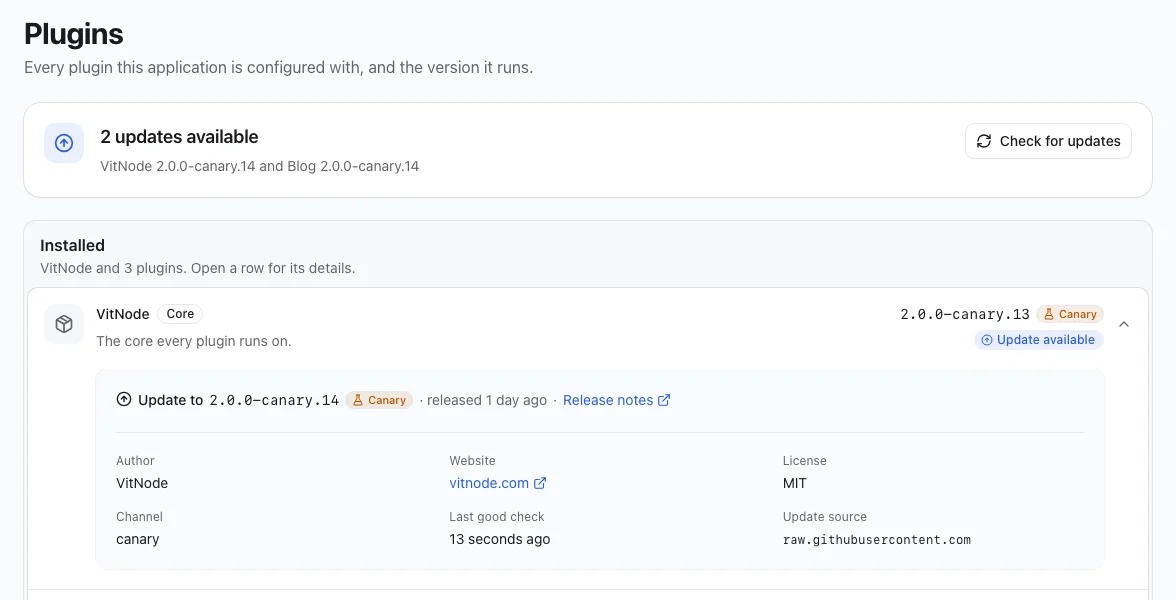
AdminCP → System → Plugins starts with a status card that sums up what needs your attention: security updates, failed checks or new versions. Below it, one list shows VitNode first and every plugin after it, each with its installed version and a status badge. Open a row to see the update details, the last check, and who made the package (author, website and license).
Before you begin
- A cron adapter or external trigger must be running. The daily check is a cron job; without a scheduler nothing is checked automatically.
- The API server needs outbound HTTPS (port 443) to the update manifests - for VitNode itself,
raw.githubusercontent.com. Requests go out directly; HTTP proxy variables such asHTTPS_PROXYare not used. - Run
vitnode db migrateafter upgrading. The check stores its results in three small tables:core_update_sources,core_update_resultsandcore_update_lock.
The daily check
The cron job @vitnode/core:cron:check_updates runs at 03:17 every day in the API server's time zone (the TZ environment variable - UTC on most hosts and containers). A newly registered job has never run, so the first scheduler tick after you deploy runs the first check. Until then the status card and every row say Not checked yet.
Each run fetches every distinct manifest once, even when several plugins share it, with a 10 second timeout, a 1 MB size limit and at most four sources at a time. Opening the catalog never contacts a publisher - it only reads stored results.
Check now
Staff with Plugins → Check for plugin and core updates now (plugins.can_check_updates) see a Check for updates button. It runs the same check as the cron job and refreshes the page when it finishes.
- Only one check runs at a time across all API instances, and the daily check shares the same lease. A second click while one runs says A check is already running.
- A long check keeps its lease by renewing it every minute. If an API instance crashes mid-check, its lease runs out within five minutes and the next check takes over.
- If the server running a check can no longer confirm it holds the lease, the check stops and says The check stopped before it finished. Results stored before that are kept; press the button again a moment later.
- A manual check can run once every two minutes. A click inside that window says how many seconds to wait.
- The endpoint is
POST /api/@vitnode/core/admin/plugins/updates/check. It answers409while a check runs ("status": "running") or when the check was interrupted ("status": "interrupted"), and429during the cooldown.
Viewing the results only needs Plugins → View installed plugins and their versions (plugins.can_view). The same permission shows the update count, security alert and System updates widget everywhere else in the AdminCP. How the lease keeps checks exclusive is explained in How update checks share one lease.
Read the results
Each row carries one badge. Open the row for the full story.
| Badge | What it means |
|---|---|
| Not checked yet | No check has covered this package yet. |
| Up to date | Every version you run is at or above the channel's newest release. |
| Update available | A newer release is on your channel. The row says Update to 2.1.3, with release notes when the publisher gave a link. |
| Check failed | The source could not be read. The last good result stays visible, with its date. |
| Security update | A version you run is inside a security update's affected range - see below. |
| No update source | The package declares no update source, so VitNode can't check it. |
| Status unknown | The publisher doesn't list this package or channel, or the installed version isn't valid SemVer. The row explains which. |
| Checks turned off | The install sets updates: { enabled: false }. |
Inside an opened row you may also see:
- Requires a newer core - the release declares a core range yours is outside. If an older release on the channel fits, it is named.
- Compatibility unknown - the publisher did not say which core the release needs. VitNode does not guess.
- Not checked for this deployment yet - you redeployed, changed channel or upgraded core since the last check. Results are recomputed from the stored manifest until the next check confirms them.
When the web app and the API run different versions of a plugin, the row shows a mismatch warning and both versions are checked. A vulnerable web app version is reported even if the API's version is fine.
Rows with a security update or a failed check open on their own, so the problem is the first thing you read.
Unstable channels
Any prerelease version gets an amber tag next to it named after its channel - Canary, Alpha, Beta, RC and so on. Hover it for a reminder: unstable builds can break between releases, so keep them off production. The tag also marks prerelease versions offered as updates.
Security warnings
When a security update affects a version you run, the status card turns red and lists it, and the row gets a red Security update badge. Inside the row a red line with a shield icon names the security update, the affected version - with (API) or (web app) when they differ - and either Fixed in 2.1.3 or No fixed version has been published yet. Details opens the publisher's page.
Security updates are checked even when your channel has no newer release. A patch release on its own is never shown as a security fix; only a matching security update is.
Choose a channel
By default each package follows the channel of the version you run: 2.1.0 is stable, 2.1.0-rc.1 is rc and 2.1.0-canary.4 is canary. VitNode never moves you between channels or suggests a downgrade. To follow another channel on purpose, set it in the API config:
export const vitNodeApiConfig = buildApiConfig({
  updates: {
    channel: 'stable',
  },
  // ...the rest of your API config
})
An install without outbound network access can switch checks off with updates: { enabled: false }. The status card then says so instead of showing results.
Check the result
Open System → Plugins and press Check for updates in the status card. A toast reports how many updates and security updates were found, and the status card shows Checked with the current time.