Editor images
Let people drop, paste or insert images and file attachments into the rich text editor, stored in core_files, with ALT text, width and text wrap.
Every Editor keeps the images a document already has, but accepts new ones only when you pass uploads. Turn it on where pictures belong (an article, a forum topic) and leave it off where they don't (a moderator note). Uploaded images land in core_files, like avatars and Content Engine files.
Allow uploads in an editor
Add uploads to Editor or AutoFormEditor:
<AutoFormEditor {...props} format="json" label="Body" uploads />People can now:
- drag images from their desktop into the text,
- paste a screenshot straight from the clipboard,
- pick files from + Insert → Image.
A placeholder with a spinner sits in the text while the image uploads, then the stored image takes its place. A file that isn't an image, or is too big, never leaves the browser and shows a toast instead.
Upload from the AdminCP
By default the editor uploads as the signed-in member (POST /users/files/editor). Inside the AdminCP, upload with the AdminCP session instead:
<AutoFormEditor {...props} format="json" label="Content" uploads={{ session: 'admin' }} />That posts to POST /admin/files/editor and needs the staff permission Files → Upload images in editors (files:can_upload).
Attach files
An AdminCP editor can also take PDF, Word, PowerPoint and ZIP files. Add files: true:
<AutoFormEditor {...props} format="json" label="Content" uploads={{ files: true, session: 'admin' }} />A dropped or pasted document becomes a card with its icon, name, type and size, and + Insert → File opens a file picker.
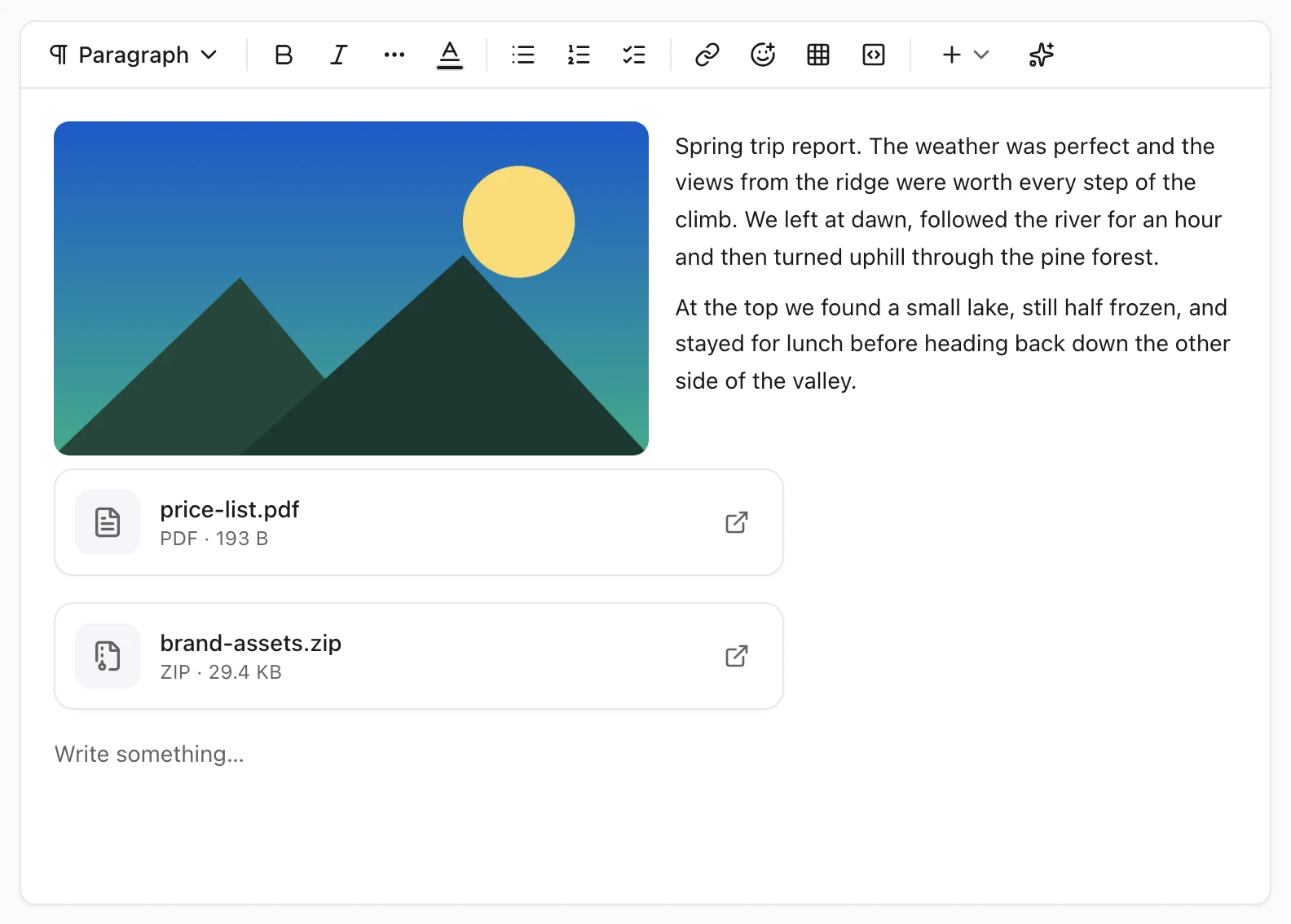
Readers open the file in a new tab. The blog's article editor works this way. files needs session: 'admin'. The member route accepts images only, so TypeScript refuses files without it.
Content Engine fields
A Content Engine rich text field turns uploads on with one option. The AdminCP form then uploads with the AdminCP session:
body: field.richText({ required: true, uploads: true }),Edit an image
Click an image in the editor. A settings button appears in its corner:
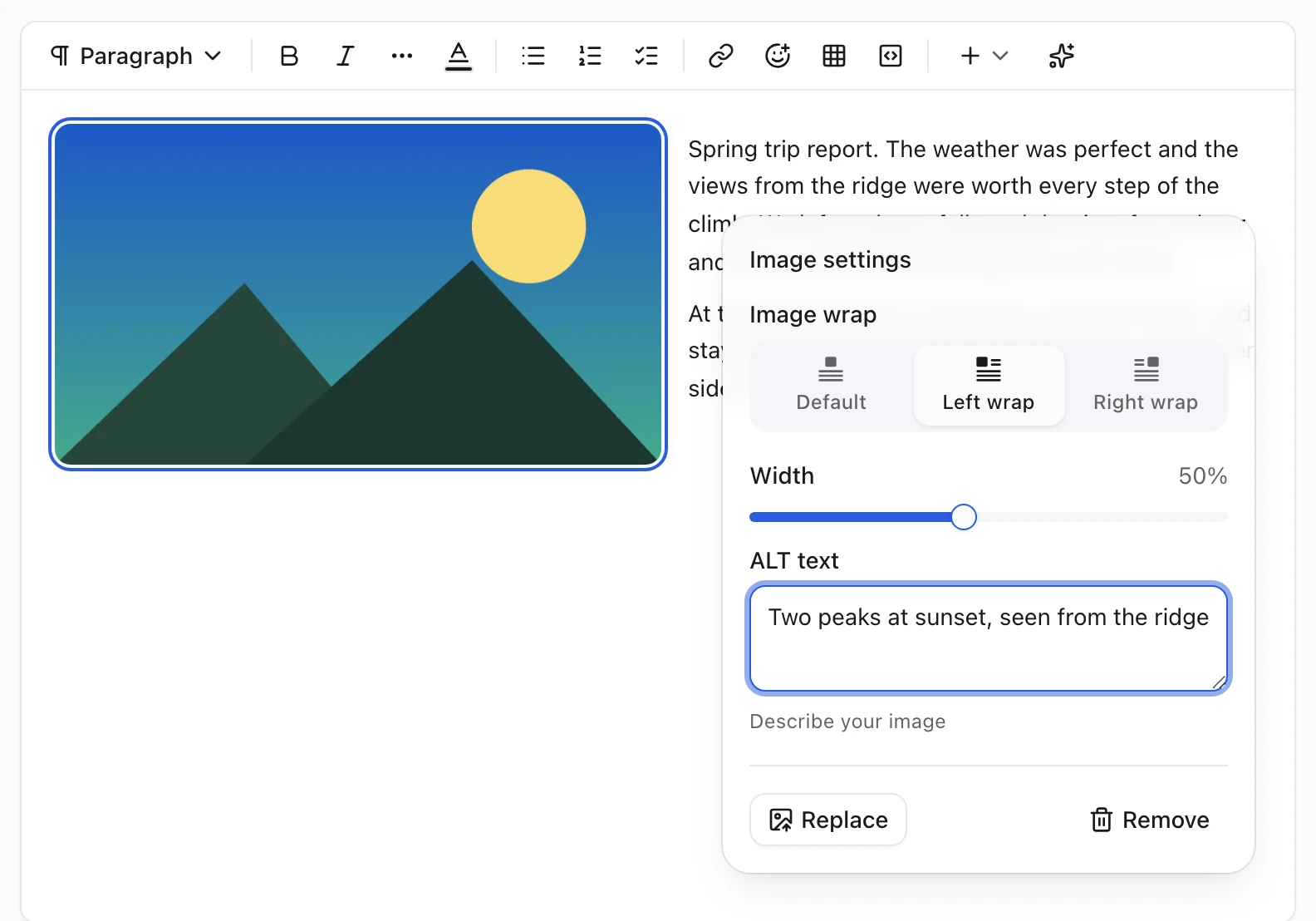
| Setting | What it does |
|---|---|
| Image wrap | Default puts the image on its own line, aligned like the text. Left wrap and Right wrap let the text flow around it |
| Width | 10–100% of the text column. Dragging the handle on the image's edge does the same |
| ALT text | Describe your image: screen readers say this instead of the picture. Up to 500 characters |
| Replace | Uploads a new file and keeps the width, wrap and ALT text |
| Remove | Deletes the image from the document. The file stays in core_files until it is deleted there |
Choosing Left wrap or Right wrap on a full-width image shrinks it to 50% to leave room for the text. On phones, wrapped images stack above the text instead of squeezing it into a thin column.
Alignment
With Default wrap, an image follows the editor's Alignment like text does. A new image takes the alignment of the paragraph it lands in, and the toolbar's left, center and right alignment work on a selected image. The alignment is saved as textAlign on the image node.
Reuse uploads in other languages
A translated article usually needs the same pictures. Nobody has to upload them twice. When another language version of the field uses images or files this one doesn't have yet, a Reuse from English bar (named after those languages) appears right under the toolbar:
- Click an image or file in the bar to insert it at the cursor, or Insert all to add every one.
- Drag it from the bar to the exact spot in the text.
- You can also drag an image or file card straight from the source column in translate mode.
Both point at the same core_files file, so nothing is uploaded again, and deleting that file later updates every language. Each item leaves the bar once this language uses it, and the bar goes away when nothing is left. It appears in AutoFormEditor with multiLang when uploads is on; a plain Editor can pass its own list through the reusableUploads prop.
When a file is deleted
Deleting an uploaded file, from Settings → Files or from AdminCP → Files, also removes it from every document that showed it. The image or attachment is replaced by a placeholder saying Image deleted or File deleted, with its old ALT text or file name crossed out. Nothing in it links to the removed file.
This happens once, right after the delete, in Content Engine rich text: records, translations, repeatable rows, revision history, live-editing drafts, and editors open at that moment. Cached public pages of the affected content types are expired. The author can remove the placeholder like any other block.
Allow images from other sites
By default every image is uploaded to your storage. To also let people insert an image by its address, set editor.images.remote in the app config:
export const vitNodeConfig = buildConfig({
  editor: {
    images: { remote: true },
  },
})
+ Insert → Image then gets a From URL tab, and pasted HTML may keep images from other sites. Only https:// addresses are accepted, so a page served over HTTPS never shows mixed-content warnings. It only applies to editors that already allow uploads.
The setting decides what the editor offers. A request sent straight to your API can still store any http(s) image in a rich text document, and renderers show it.
Limits
| Limit | Images | Attachments (files: true) |
|---|---|---|
| File types | PNG, JPEG, WebP, GIF, AVIF | PDF, DOC, DOCX, PPT, PPTX, ZIP |
| Size | 10 MB each | 20 MB each |
| Storage path | editor/ folder | editor/ folder |
| Owner | The uploader | The uploader |
SVG is left out on purpose, because an SVG can carry scripts. An attachment must have the extension that matches its type, and its first bytes must look like that format (%PDF, a ZIP header, or the legacy Office header), so a renamed executable is refused. With storage.image set in the API config, images are re-encoded (to WebP by default) like every other upload. Without a storage.adapter, uploads fail with a 500.
How images and files are stored
An image is an image node in the document:
{
  "type": "image",
  "attrs": {
    "src": "https://cdn.example.com/2026/10/editor/4f1c.webp",
    "alt": "Our booth at the conference",
    "fileId": 42,
    "width": 50,
    "wrap": "left",
    "textAlign": null,
    "naturalWidth": 1600,
    "naturalHeight": 900
  }
}
RichTextContent and richTextToHtml render it as <figure class="tiptap-image"> with a lazy-loaded <img>. width and height come from the stored file, so the page doesn't jump while it loads.
An attachment is an attachment node:
{
  "type": "attachment",
  "attrs": {
    "src": "https://cdn.example.com/2026/10/editor/9b2e.pdf",
    "name": "price-list.pdf",
    "mimeType": "application/pdf",
    "size": 397312,
    "fileId": 43
  }
}
It renders as <a class="tiptap-attachment"> opening the file in a new tab, labelled PDF · 388 KB. HTML editors store the same markup, and EditorContent keeps both through sanitizing.
After the file is deleted, the node keeps its name (or alt) and layout but has "deleted": true, "src": null and "fileId": null. RichTextContent renders the translated placeholder; richTextToHtml leaves it out.