Notifications
Notifications in the AdminCP
Manage VitNode notifications in the AdminCP. Check activity, set what members get by default per type, send a test email, and pause, cancel, mark read or delete notifications for everyone.
Open AdminCP → System → Notifications (/admin/core/system/notifications) to see how notifications are doing, decide what members get by default and stop everything when you need to.
Permissions
The screen uses the core notifications staff permission module. Grant it in AdminCP → Staff → Administrators, see Staff permissions.
| Permission | Allows |
|---|---|
notifications.can_view | Open the screen and see activity and types |
notifications.can_edit | Change what each type does by default |
notifications.can_manage | The Settings sheet and Reset all members to defaults |
Check activity
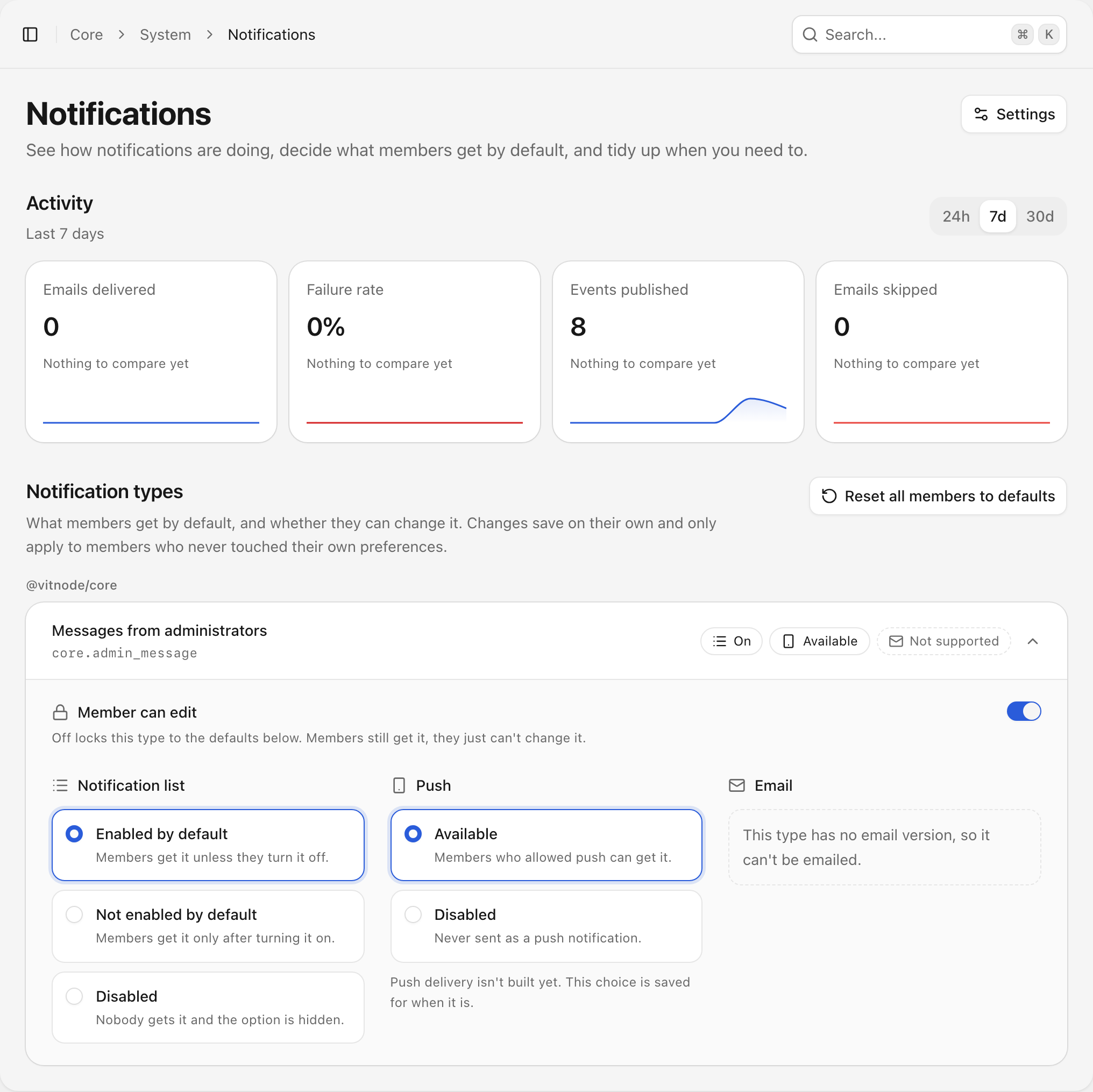
Activity shows four numbers for the last 24 hours, 7 days or 30 days, each compared with the period before:
- Emails delivered: notification emails that went out. Test emails do not count.
- Failure rate: failed emails out of every email attempted.
- Events published: notifications that plugins and core published.
- Emails skipped: emails that were due but not sent, for example because the member turned email off or already read the notification.
Hover or tap a trend line to see the count for one day, or one hour in the 24-hour view. Days follow the site's time zone, so "today" means the same to every administrator. When notifications are paused, a Notifications are paused banner shows above the numbers.
Set what members get by default
Notification types lists every registered type, grouped by plugin. Each row shows what members get today, and opening it lets you change that. Changes save as you click.
| Choice | Options |
|---|---|
| Member can edit | Off locks the type to the defaults. Members still get it but cannot change it |
| Notification list | Enabled by default, Not enabled by default, Disabled |
| Push | Available, Disabled |
| Enabled by default, Not enabled by default, Disabled, plus the frequency |
Enabled by default means members get it unless they turn it off. Not enabled by default means they get it only after turning it on. Disabled turns the channel off for everyone and hides it from members' settings. A type without an email version shows that it cannot be emailed.
Defaults apply to members who never chose for themselves. A member's own choice still wins unless Member can edit is off. Mandatory types always stay in the notification list and are always locked. See How core decides what a member receives.
Reset all members to defaults removes every member's own choices so everyone follows this screen again. The confirmation says how many members customized their settings. Members keep their time zone. The reset cannot be undone.
Use the Settings sheet
Select Settings in the top-right corner to open tools and the danger zone.
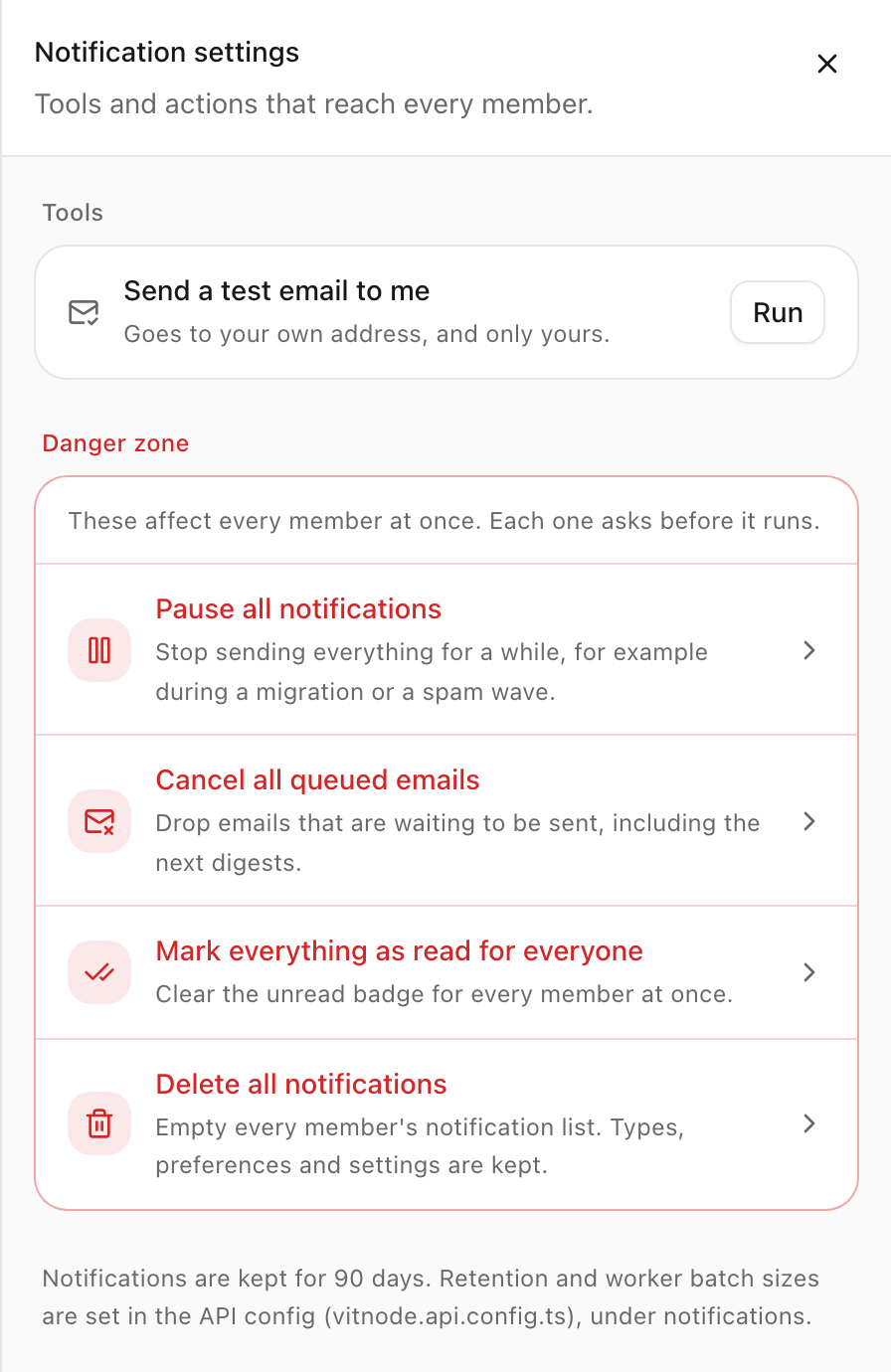
Send a test email to me queues a sample notification email to your own address. It only appears when an email adapter is configured, and it cannot send to anyone else.
Each danger zone action affects every member and asks for confirmation first:
| Action | What happens |
|---|---|
| Pause all notifications | Nothing is delivered or emailed. New notifications are stored and wait. Resume sends everything that waited |
| Cancel all queued emails | Emails that have not gone out, including the next digests, are skipped. Inbox items stay |
| Mark everything as read for everyone | Every unread notification becomes read and every badge drops to zero live |
| Delete all notifications | Empties every member's inbox. Type delete all notifications to confirm |
Deleting keeps types, preferences, settings and email history, and cannot be undone.
The bottom of the sheet shows how long notifications are kept. Retention and worker batch sizes are set in your API config, see Configure the workers. Delivery lists, retries and unread count repair have no buttons on this screen. Use the AdminCP endpoints for them.